
Visitors who find something they like often aren't ready to decide right now.
Here's how to add a favorites button to your WordPress grids: a heart on each item, a filter to see the saved ones, and a ranking that shows you what your visitors love most.

Quick answer: Media Grid has a built-in bookmarking system:
- enable it in Media Grid → Settings → Main Options → Items Bookmarking System, for all grids or only some
- a heart (or bookmark) icon appears on each item, in the grid and in the lightbox
- a Bookmarked filter shows only the saved items, with their count
- it works for guests too, without registration, and for logged users on every device
Why favorites bring visitors back
Think about a visitor browsing fifty properties, recipes, products or projects. They like four, but they're on the phone, on a break, or need to talk with someone first. Without favorites, next time they have to look for those four again, and often they don't.
A favorites button changes this:
- it saves the choice: one tap now, the shortlist is ready next time
- it gives a reason to come back: "my favorites" are on your site, not on a competitor's
- it tells you what works: the most saved items are your best sellers, or the next ones to promote
Ways to add favorites in WordPress, compared
| Works without login | Filter to see saved items | Works with | |
|---|---|---|---|
| WooCommerce wishlist plugins | Often | On a separate wishlist page | Products only |
| Favorite posts plugins | Sometimes | A list shortcode on another page | Posts |
| Membership/community plugins | No | In the user profile | Their own content |
| Media Grid | Yes, or only logged users | Yes, right in the grid | Any grid item: projects, posts, products, images |
The difference: with Media Grid favorites are part of the grid visitors are already browsing. No extra page to build, no extra plugin to keep updated.
Step 1: enable the bookmarking system
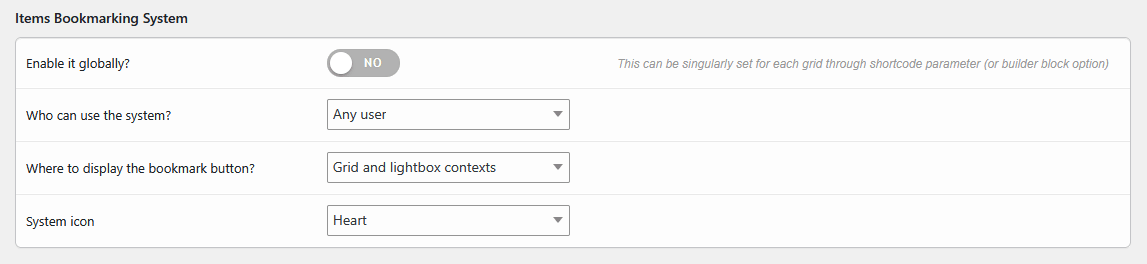
Go to Media Grid → Settings → Main Options → Items Bookmarking System:
- Enable it globally?: turns favorites on in every grid. Leave it off if you want them only in some grids (see step 3)
- Where to display the bookmark button?: Grid and lightbox contexts, or Only in the lightbox for a cleaner grid
- System icon: Heart for "favorites", Bookmark for "save for later"
Step 2: guests or logged users?
With Who can use the system? you choose:
- Any user: everyone can save items, no account needed. For guests the list is kept in their browser for a year, so it's there when they come back from the same device
- Only logged in users: the list is saved in the user account, so it's the same on phone, tablet and computer
Even with Any user, logged users always keep their favorites in their account. For most sites "Any user" is the right choice: asking for a registration before saving a favorite stops most people.
Running a members area? Favorites for logged users pair well with a private client portal built with PrivateContent.
Try it on your own grids: start your free 7-day trial and add favorites to your site today.
Step 3: choose the grids
If you didn't enable it globally, turn it on grid by grid: in the Media Grid Gutenberg block or Elementor widget set Enable items bookmarking?, or add the parameter to the shortcode:
[ mediagrid gid="9" filter="1" bookmarks="1"]It works the other way too: with the global option on, bookmarks="0" removes favorites from a specific grid.
Any item can be saved: Media Grid items, posts, WooCommerce products and Media Library images. So the same system works for a portfolio, a posts grid or a catalog.
What visitors see
- a heart on each item: one click saves it, another click removes it
- the same heart in the lightbox, so they can save while looking at the details
- a Bookmarked button next to the filters, with the number of saved items: a click shows only those
Everything happens in the page, without reloads.
See what your visitors love most
Media Grid counts how many times each item has been saved:
- in Media Grid → Items there's a Bookmarked by column, and you can sort the list by it to see the most loved items first
- for posts and products, the count also appears in the publish box of the editor
It's free market research: the most saved products deserve the homepage, the most saved projects the first place in your portfolio, the most saved recipes a newsletter.
Real-world examples
- Real estate agencies: visitors shortlist properties and come back to compare them
- Catalogs without online sales: furniture, tiles, fabrics, a "favorites" list to bring to the showroom
- Recipe and travel sites: save the ideas for later, with a reason to return
- Stock photos and illustrations: a selection of images to download or request
- Events and courses: a personal shortlist of sessions to attend
Frequently asked questions
Do visitors need an account?
No. With Who can use the system? set to Any user, guests can save items without registering. Their list stays in the browser for a year.
Can I see which items are saved the most?
Yes. The Bookmarked by column in the Media Grid items list shows how many times each item was saved, and can be sorted.
Does it work with WooCommerce products?
Yes. Products in a Media Grid grid can be saved like any other item, so it works as a simple wishlist, with a quick view lightbox to add them to the cart.
Can I use a bookmark icon instead of a heart?
Yes. System icon offers Heart and Bookmark, and the button can appear in grid and lightbox, or only in the lightbox.