
Ten YouTube embeds stacked in a page make it slow, long and ugly.
Here's how to build a real video gallery in WordPress: your videos in a grid with their covers, played in a lightbox or right inside the grid, without slowing down the page.

Quick answer: with Media Grid every video becomes a grid item:
- add a Lightbox Video or Inline Video item and paste the YouTube, Vimeo or Dailymotion link, or pick an MP4 from the Media Library
- set a cover image and check Use featured image as video poster?: the player loads only when someone clicks play
- compose the grid, with bigger spaces for the most important videos
- publish it with filters by category, like "Tutorials", "Interviews", "Events"
Why not just embed the videos?
Pasting YouTube links in the editor works for one video. With ten or twenty, three problems show up:
- Speed: every embedded player loads its own scripts, even if nobody presses play. Many players mean a heavy page and worse Core Web Vitals
- Layout: videos end up one under the other, in a long page nobody scrolls to the end
- Order: no categories, no filters, no way to find the right video
A video gallery solves all three: a grid of covers, one player loaded only when needed, and filters to browse.
Ways to show videos in WordPress, compared
| Grid with covers | Player loaded on click | Filters and mixed content | |
|---|---|---|---|
| YouTube/Vimeo embeds in the editor | No | No, every player loads | No |
| YouTube channel feed plugins | Yes | Usually | Only videos of one channel |
| Page builder video widgets | One video per widget | With an image overlay | No |
| Media Grid | Yes, free sizes and masonry | Yes, with the poster option | Yes, videos with images, audio and text |
With Media Grid you're not tied to one platform: YouTube, Vimeo, Dailymotion and your own MP4 files live in the same grid.
Lightbox or inline: which one?
- Lightbox Video: the grid shows the cover, a click opens the video big in a lightbox, with title, description and share buttons beside or under it. Best for galleries, portfolios and tutorials
- Inline Video: the video plays right inside its grid cell. Best for a showreel or a few key videos that must be visible at first sight
You can mix them in the same grid, for example a big inline showreel on top and the other projects in lightbox.
Step 1: add your videos
Go to Media Grid → Add New Item for each video:
- Write the title and, in the editor, the text for the lightbox: what the video is about, credits, links
- Set the featured image: it's the cover in the grid. Use a real frame of the video or a custom thumbnail
- Tick the Item Categories, for example "Tutorials" or "Interviews"
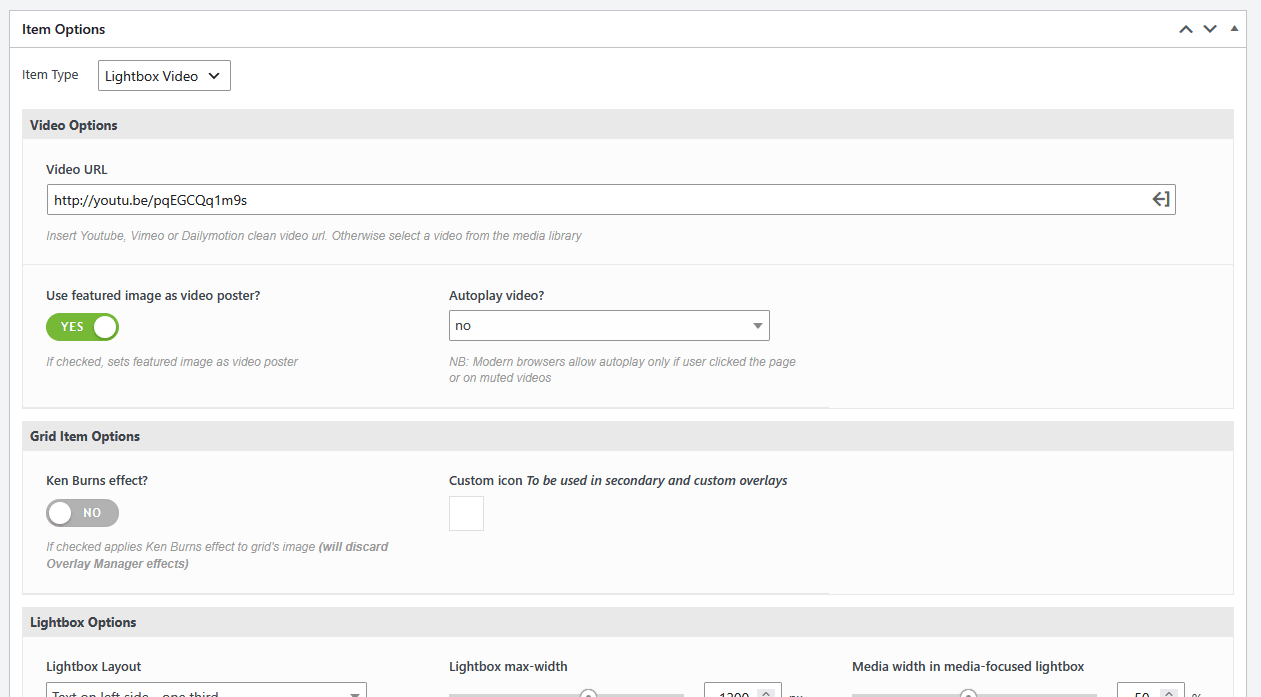
- In Item Options choose the Item Type: Lightbox Video or Inline Video
- In Video URL paste the link of the video, or click search in media library to pick an uploaded file
- Check Use featured image as video poster? and choose whether to use Autoplay video?
- Publish
Supported links and files:
- YouTube: normal links, short youtu.be links and YouTube Shorts
- Vimeo and Dailymotion
- Self-hosted videos: MP4, WebM and the other common formats, also with several sources separated by commas
Try it with your own videos: start your free 7-day trial and publish your video gallery today.
Step 2: build the video grid
- Go to Media Grid → Grid Builder, create a grid with Add New Grid
- In Add Grid Items pick the video items, filtering by category if you have many
- Size each item: videos look best wide, for example half or full row for the main ones and one third for the others. Set the mobile sizes too
- Save the grid
In the lightbox the player uses 16:9 by default. For vertical videos, like Shorts or Reels, change the Player's height of that item, which sets its aspect ratio.
Step 3: publish it with filters
Add the grid with the Media Grid Gutenberg block or Elementor widget, or with the shortcode:
[ mediagrid gid="15" filter="1" lb_thumbs_nav="1"]filter="1"shows the category buttonslb_thumbs_nav="1"adds thumbnails to the lightbox, so visitors jump from one video to another without closing itmf_lightbox="1"uses the media-focused lightbox, where the video takes most of the screen and the text stays at its sidesearch="1"adds a search bar, useful with many tutorials
With Deeplinking active, each opened video gets its own URL: send someone the link and the video opens directly in the lightbox.
Video previews on hover
Every item, even an image or a link, has the Featured video box in the editor sidebar. Upload a short clip and choose:
- Play and display on hover: the cover comes alive when the mouse goes over it, like on streaming platforms
- Always play and display: the clip plays in loop in the grid
It's the best way to make a showreel grid without loading full players: a 5 second muted clip on the cover, the full video in the lightbox.
Want a play icon or a "Watch" label on the video covers? The Overlay Manager add-on lets you design the cover overlays, with an Item type icon that changes for videos, images and audio, and the [ mgom-type-txt type="video"]Watch[ /mgom-type-txt] shortcode to show a text only on the lightbox video items. It's included in the Media Grid Bundle Pack.
Keep the page fast
- Use the poster: with Use featured image as video poster? checked, YouTube and Vimeo players are not loaded with the page. The visitor sees your cover, and the player loads only on click. Self-hosted videos don't preload either
- Optimized covers: Media Grid creates thumbnails at the right size for each grid cell
- Pagination: for long archives, split the grid into pages or use infinite scroll
For self-hosted videos that don't fill their space, Settings → Main Options → Various → Self hosted video - background mode fills the gaps with a blurred copy of the video instead of black stripes. The players look can be set in Colors → Audio & video players theme, Modern or Classic, dark or light.
Real-world examples
- Videomakers and production companies: showreel inline on top, projects in lightbox, filtered by client type
- Coaches and online teachers: free tutorials by topic, with search, to bring visitors to the paid course
- Musicians and bands: video clips next to tracks with an audio player and photos of the concerts
- Companies: product demos, customer interviews and event videos in one page
- Real estate and travel: property and destination tours, filtered by area
Mixing videos with projects and images? See also how to build a WordPress filterable portfolio.
Frequently asked questions
Do I have to upload videos to my server?
No. You can just paste YouTube, Vimeo or Dailymotion links: the video stays on the platform and you don't use your hosting space. Self-hosted files are an option, not a requirement.
Does it support YouTube Shorts?
Yes. Paste the Shorts link like any other YouTube link, and set the player's height of the item to show it vertical.
Can videos autoplay?
Yes, muted or with sound, item by item. Keep in mind that browsers allow autoplay with sound only after the visitor has interacted with the page, so muted autoplay is the reliable choice.
Is the video gallery mobile friendly?
Yes. Each item has its own mobile size, the lightbox supports touch, and videos keep their aspect ratio.