
Every click that takes a shopper away from your product list is a chance to lose them.
Here's how to add a quick view to WooCommerce: products in a grid, and a lightbox with gallery, variations, price and an "Add to cart" button that works without leaving the page.

Quick answer: WooCommerce has no quick view. With Media Grid your products open in a lightbox with everything needed to buy them:
- add your products to a grid in the Media Grid Grid Builder, by hand or automatically by category
- each product opens in a lightbox with its image gallery, attributes, description and price
- shoppers choose the variation and quantity and click Add to cart, which works in AJAX, without reloading
- add filter buttons, search and pagination to the grid, and you have a complete shop page
- with the Overlay Manager add-on, put price and an "Add to cart" button right on the product covers
Why a quick view sells more
In a normal WooCommerce shop, checking a product means opening its page, then going back to the list, finding the point where you were, and opening the next one. On a phone, after three products many shoppers give up.
A quick view keeps the shopper on the list:
- faster comparison: open, look, close, open the next one
- fewer steps to buy: the product goes to the cart from the lightbox
- no lost position: closing the lightbox brings back the grid exactly where it was
It works best for shops with many similar products: clothing, prints, furniture, handmade items, food and wine.
Quick view options, compared
| Quick view | Variations and AJAX cart | Custom grid layout | |
|---|---|---|---|
| WooCommerce alone | No | Only on the product page | Theme columns |
| Single-purpose quick view plugins | Yes, added to the theme's shop | Yes | No, it keeps the theme grid |
| Theme built-in quick view | Sometimes | Depends on the theme | No, and lost if you change theme |
| Media Grid | Yes, with product gallery slider | Yes | Yes, masonry, free sizes, filters |
The difference: Media Grid doesn't just add a button to your shop, it builds the product grid itself. You can mix products with images, videos and text blocks, for example a lookbook where each photo opens the product to buy.
What shoppers see in the lightbox
- The product images: if the product has a gallery, the images become a slider, with optional thumbnails. Otherwise the main image
- Title and attributes: material, size, color and the other product attributes
- The description: the full product text
- Price and quantity: the quantity field respects the minimum and maximum, and disappears for products sold individually
- Add to cart: the product is added in AJAX, then the shopper sees "Product added to cart" with a "View cart" link
It also handles the special cases correctly:
- Variable products: a dropdown lists the variations, and choosing one updates price, image, description and availability
- External/affiliate products: the button becomes "Buy now", or your button text, and leads to the external URL
- Out of stock products: the button shows "Out of stock" and can't be clicked
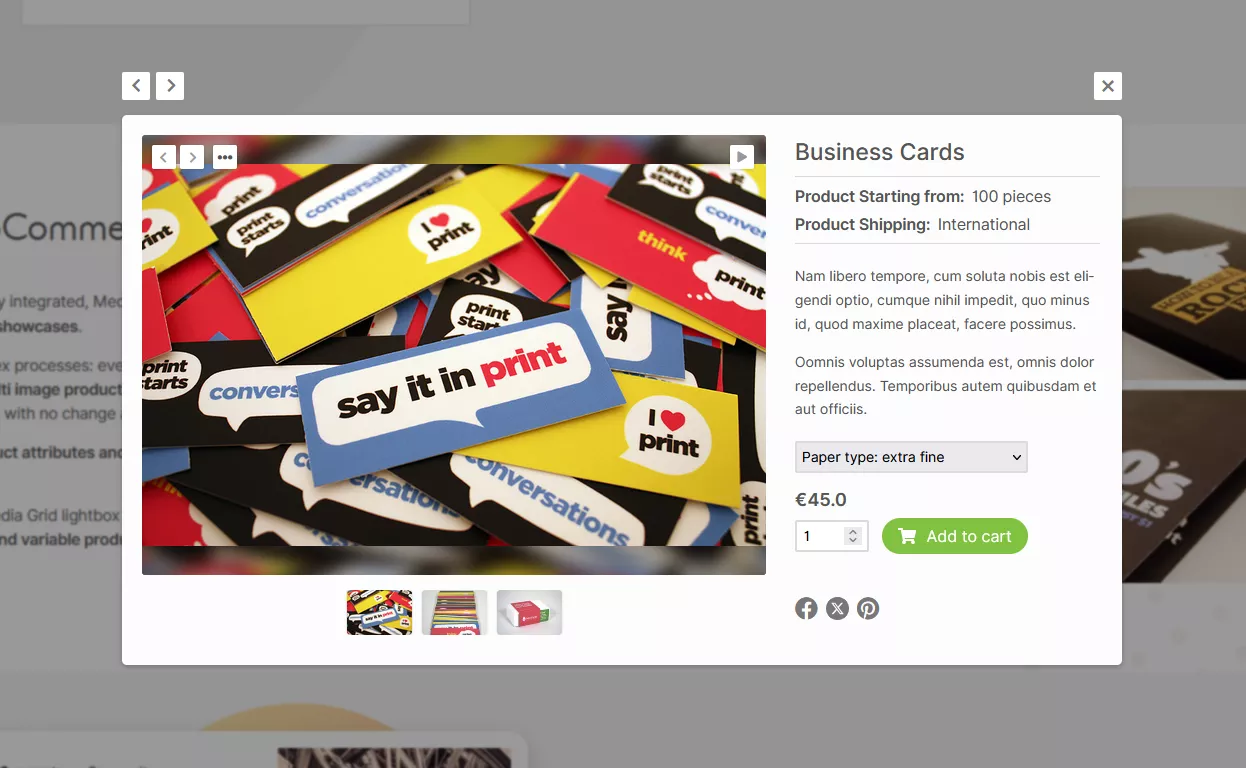
Step 1: put your products in a grid
- Go to Media Grid → Grid Builder, create a grid with Add New Grid and select it
- Choose the Grid composition:
- manual: in Add Grid Items pick your products post type as items source and click the products you want, in the order you want. Perfect for a curated selection, like "Best sellers" or a seasonal lookbook
- dynamic: choose the products post type and taxonomy, optionally a specific product category, and how many products to fetch and how to sort them. New products appear in the grid by themselves
- Set the size of the items. Give a bigger space to the products you want to push
- Save the grid
See it on your own shop: start your free 7-day trial and add a quick view to your products in a few minutes.
Step 2: fine-tune each product
Open a product in WooCommerce: under the editor you find the Media Grid Integration box. Here you can:
- assign the Associated categories: they are the Media Grid Item Categories used by the grid filters, for example "New in", "Sale", "Gifts"
- choose the lightbox layout, for example text on the side, and the slider options. Prepend featured image? puts the main image before the gallery images
- use Direct link to post? if a product should open its product page instead of the lightbox
In the sidebar, Media Grid - Featured video adds a video to the product cover in the grid, played on hover or always. Great for products that need to be seen in action, like clothing on a model or a gadget at work.
Step 3: publish the shop grid
Add the grid to a page with the Media Grid Gutenberg block or Elementor widget, or with the shortcode:
[ mediagrid gid="8" filter="1" search="1"]filter="1" shows the category buttons and search="1" a search bar. For long catalogs add pagination: numbered pages, a "show more" button or infinite scroll.
You can use the grid as your main shop page, or as a block in the homepage, in a landing page or in a blog post about a collection.
WooCommerce settings
In Media Grid → Settings → Main Options → WooCommerce:
- Hide "add to cart" button?: for catalogs without online sales, the lightbox becomes a product sheet
- Hide product attributes?: for cleaner lightboxes
- Show also attributes used as variations?: by default only the other attributes are listed, since variations already have their dropdown
Colors of the cart button are in Colors → Lightbox - WooCommerce "add to cart" system, so it matches your brand.
Add to cart right on the product cover
For shoppers who already know what they want, even the lightbox is one step too many. With the Overlay Manager add-on you design the overlay that appears on the product cover, and you can put the purchase right there:
- add a button element to the overlay, with your text and a Font Awesome icon, like a cart
- set its Custom button behavior to Add to cart (WooCommerce): a click adds the product and takes the shopper to the cart
- or set it to Go to post/product, for a "Details" button that opens the product page
- show the price on the cover with the
%WC-PRODUCT-PRICE%placeholder in a text element. Out of stock products show "Out of stock" instead
The two ways work together: the button on the cover for a fast purchase, the click on the image for the quick view with gallery and variations. For products with variations, the quick view is the right path, since the shopper has to choose size or color first.
The Overlay Manager is included in the Media Grid Bundle Pack.
A quick view button anywhere
Want a "Quick view" button in a blog post or in a landing page, outside the grid? In the product sidebar, Media Grid - Standalone Lightbox → Enabled for this item? → Yes. Media Grid gives you a trigger class like mg_stln_lb_123: add it to any button, image or link, and a click opens that product's lightbox, with the cart button.
<a href="#" class="mg_stln_lb_123">Quick view</a>Filter products by attribute and price
Category buttons are fine for small shops. For real catalogs, the Advanced Filters add-on turns your WooCommerce attributes into filters:
- color, size, material and any other attribute, with single or multiple choice
- a price range filter
- sorting by price, title or date
- side filters that stay visible while scrolling, and a compact "button-to-filters" layout on phones
It's included in the Media Grid Bundle Pack, with the Overlay Manager add-on for price and add to cart on the covers.
Frequently asked questions
Does it replace my WooCommerce shop page?
It doesn't have to. Your shop, product pages, cart and checkout stay as they are. The Media Grid grid is an extra way to show products, and you can use it wherever you want, also as the main shop page.
Does it work with variable products?
Yes. The lightbox shows a dropdown with the variations, and each one updates price, image, description and availability before adding it to the cart.
Can I use it as a catalog without the cart?
Yes. Check Hide "add to cart" button? in the WooCommerce settings and the lightbox becomes a product sheet.
Is it mobile friendly?
Yes. The grid has its own mobile sizes, set by you, and the lightbox supports touch.
Can I mix products with other content?
Yes. The same grid can contain products, images, videos and text blocks. You can also build a filterable portfolio with the same plugin.
Can shoppers save products for later?
Yes. Media Grid has a built-in favorites system: a heart on each product, and a filter to see the saved ones, even without an account. See how to add favorites to WordPress.