
Give every client their own login, a private dashboard, personal documents and pages only they can see.
All inside your WordPress site, without handing out WordPress accounts.
Quick answer: a WordPress client portal needs four things: client logins, pages only logged-in clients can reach, content that changes per client, and a safe place for files. With PrivateContent you:
- create a "Clients" user category and add your clients (by hand, CSV import or a registration form)
- add a login page and restrict the portal pages to that category
- give each client a personal reserved page and private files
- show portal links in the menu only to logged-in clients
What a client portal needs
A client portal is a private area of your website where each client logs in and finds what's relevant to them: project updates, documents, invoices, resources. To work properly it needs:
- Separate client logins, so each person has their own access and you can disable it at any time
- Pages that guests can't reach, not even by typing the URL or finding them on Google
- Content that changes per client, so Sarah never sees what you prepared for Mark
- Private files with links that don't work for anyone else
- A clean experience: clients should never land in the WordPress admin
Ways to build a client portal in WordPress, compared
| Option | Runs on your site | Per-client content | Flexible design | Ongoing cost |
|---|---|---|---|---|
| External SaaS portal | No, separate app | Yes | Limited to their templates | Monthly per user or seat |
| Membership plugin | Yes | Only by level | Yes | Yearly subscription |
| Password-protected pages | Yes | No | Yes | Free, but not secure for files |
| PrivateContent | Yes | Yes: per category and per single client | Yes, with your theme and page builder | Lifetime license, unlimited clients. Optional yearly fee for support and updates |
PrivateContent was built for exactly this: it manages its own users, separate from WordPress accounts, and decides who sees each page, menu item, block and file. Your portal keeps your site's design, works with Gutenberg, Elementor, Divi and WPBakery, and has no per-client fees.
See it in action: the PrivateContent demo has two test accounts that see different content on the same pages. Or start your free 7-day trial and build your portal now.
What you need
- WordPress with your usual theme
- PrivateContent
- Optional: the Files Manager add-on to share documents
Step 1: create the client category
PrivateContent doesn't use WordPress roles. It uses user categories, which you can create freely and combine: a user can belong to several categories at once.
- Go to PrivateContent → User Categories and add a category, for example "Clients"
- Need different access levels? Add more, like "Clients – Premium" or one category per company
Then open the PrivateContent settings and set the Main redirect target for restricted pages: this is where blocked visitors are sent, usually your login page (you'll create it in Step 3).
Step 2: add your clients
Pick the way that suits you, or combine them:
- By hand: use PrivateContent → Add User , assign the "Clients" category and send the client their credentials
- From a spreadsheet: the Import / Export Hub imports any CSV file with at least username and password columns
- With a registration form: build it in the form builder and publish it with
[ pc-registration-form]. New sign-ups can wait in pending approval status until you accept them, so nobody gets in without your OK
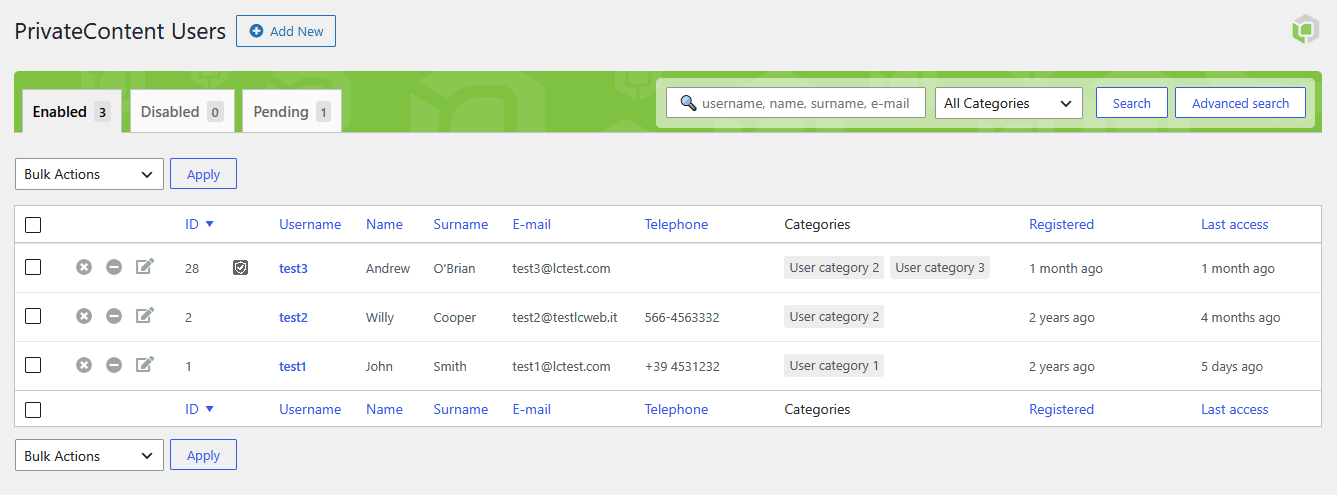
Clients are managed in PrivateContent → Users List, where you can search, filter, disable or approve them at any time.
Step 3: create the login page
Create a page called "Client login" and add:
[ pc-login-form redirect="https://yoursite.com/client-area/"]The redirect parameter sends clients straight to the portal after logging in. The form is hidden automatically from users who are already logged in. For logging out, use [ pc-logout-box] or add ?pc_logout to any link of your site, for example in the menu.
You can also open the login form in a lightbox from any button, so clients log in without leaving the page they're on.
Step 4: build and lock the portal dashboard
Create a page called "Client area". This is your portal's home: welcome text, latest news, links to documents, contact details. Design it with the editor or page builder you already use.
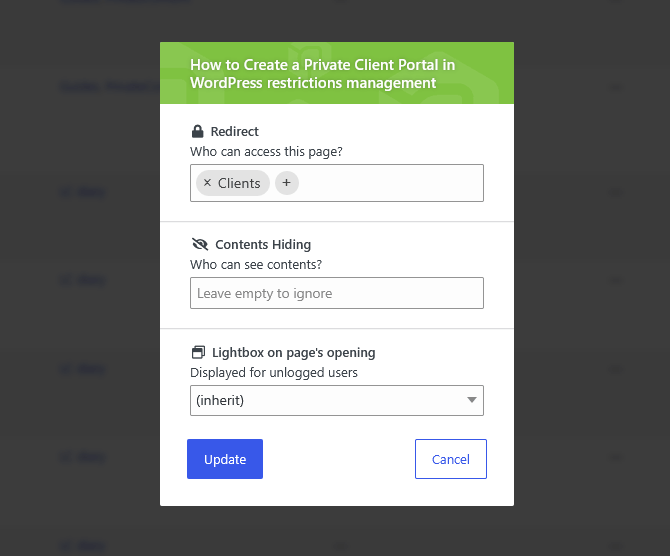
Now lock it. In the page editor, use the PrivateContent Restrictions Wizard:
- Choose Redirect as the restriction type and allow the "Clients" category
- Save: guests who try to open the page are sent to the login page, and the page disappears from site search, archives and post lists for anyone not allowed. Menu links are handled separately, see Step 6
Restrictions are inherited: lock a parent page or a post category once, and every child page or post in it is protected too. Perfect for a portal with many sub-pages.
Show different blocks to different clients
Inside the same page you can show sections only to some categories. Wrap them with:
[ pc-pvt-content allow="3"]Content for Premium clients only[ /pc-pvt-content]allow takes one or more category IDs separated by commas, or all for any logged-in user. If you use Gutenberg or Elementor, you can set the same visibility on each block or element without shortcodes.
Step 5: add personal pages and files
Categories handle what groups of clients see. For content that belongs to one client, PrivateContent gives every user a reserved page: a single URL whose content changes for each logged-in client. Project status, personal notes, private comments: everything stays on one page and nobody can see someone else's. Full guide: how to create a private page for each user.
For documents, add the Files Manager add-on: upload files to a single client or to a whole category, and even the direct file link stays locked. Add this to the dashboard to show each client their own files:
[ pcfm-user-files-manager field_id="client-documents"]Step-by-step guide: how to share private files with specific users.
Step 6: show the portal in the menu
Your menu should change with the visitor: guests see "Client login", clients see "Client area", "My documents" and "Logout". In Appearance → Menus every menu item gets a PrivateContent visibility field, so you decide who sees each link. Full guide: how to show menu items to specific users.
Go further: payments, emails, 2FA
PrivateContent add-ons turn the portal into a complete platform:
- Premium Plans: charge for portal access with paid plans and subscriptions
- Mail Actions: welcome emails, approval notices and alerts when new files are ready
- Extra Security: two-factor authentication for client logins
- User Activities: see what each client does in the portal
- Data Bridge: connect client data with other services
Who uses a client portal like this
- Agencies and freelancers: project updates, drafts and deliverables for each client
- Accountants, lawyers and consultants: documents and reports in a private, professional space
- B2B companies: price lists, catalogs and orders for resellers. See how to hide WooCommerce prices from guests
- Coaches and trainers: material and resources for each group or each person
Frequently asked questions
Do my clients need WordPress accounts?
No. PrivateContent has its own user system, separate from WordPress users, so clients never see the WordPress admin. If you need them as WordPress users too, for example for WooCommerce or comments, you can enable the optional sync.
Can I approve clients before they get access?
Yes. Users can be active, disabled or pending approval. Sign-ups from a registration form can wait in pending status until you approve them.
Will Google index my client pages?
Not if you use the Redirect restriction: blocked pages are removed from site search, archives and post lists, and visitors without access are sent to your login page.
Does it work with my theme and page builder?
Yes. PrivateContent works with any theme and integrates natively with Gutenberg, Elementor, Divi and WPBakery, so the portal looks like the rest of your site.
Can I charge clients for portal access?
Yes, with the Premium Plans add-on you can sell access through paid plans and subscriptions.
Is there a limit on the number of clients?
No. You can add as many clients and categories as you need, with no per-user fees.
Can I try it before buying?
Yes. You can request a free 7-day trial license and build your portal on your own site. Every purchase is also covered by a money-back guarantee.