
Most blog pages look the same: a list of posts, one under the other, with the same thumbnail size.
Here's how to show your posts, or any custom post type, in a modern grid that fills itself with the latest content, with filters, infinite scroll and a lightbox.

Quick answer: with Media Grid you create a dynamic grid:
- choose which posts to show: a post type, optionally a single category, how many and in which order
- draw the layout once, with big and small blocks, and let it repeat
- publish it with the block, the Elementor widget or the shortcode
- every new post appears in the grid by itself, in the right place
Why a grid instead of the blog list
- More content above the fold: visitors see ten posts at a glance instead of three
- Hierarchy: the latest or most important post gets a big block, the others smaller ones, like on a magazine homepage
- Longer visits: filters, infinite scroll and a lightbox invite visitors to open one more post
And it's not just for the blog: the same grid works for projects, events, recipes, properties, team members or any custom post type.
Ways to show posts in a grid, compared
| Updates by itself | Mixed sizes (masonry) | Any post type | |
|---|---|---|---|
| Query Loop / Latest Posts block | Yes | No, same size for all | Yes |
| Theme blog layouts | Yes | Rarely, lost if you change theme | Usually only posts |
| Page builder posts widgets | Yes | Fixed column patterns | Yes |
| Media Grid | Yes | Yes, you draw the layout | Yes, products included, mixed in one grid |
What you can show
Any post type with a featured image and a taxonomy: posts, pages with categories, WooCommerce products, and the custom post types of your theme or plugins, like portfolio, events or properties. A single grid can even take content from several sources, for example the latest posts plus the latest projects.
Step 1: choose the posts
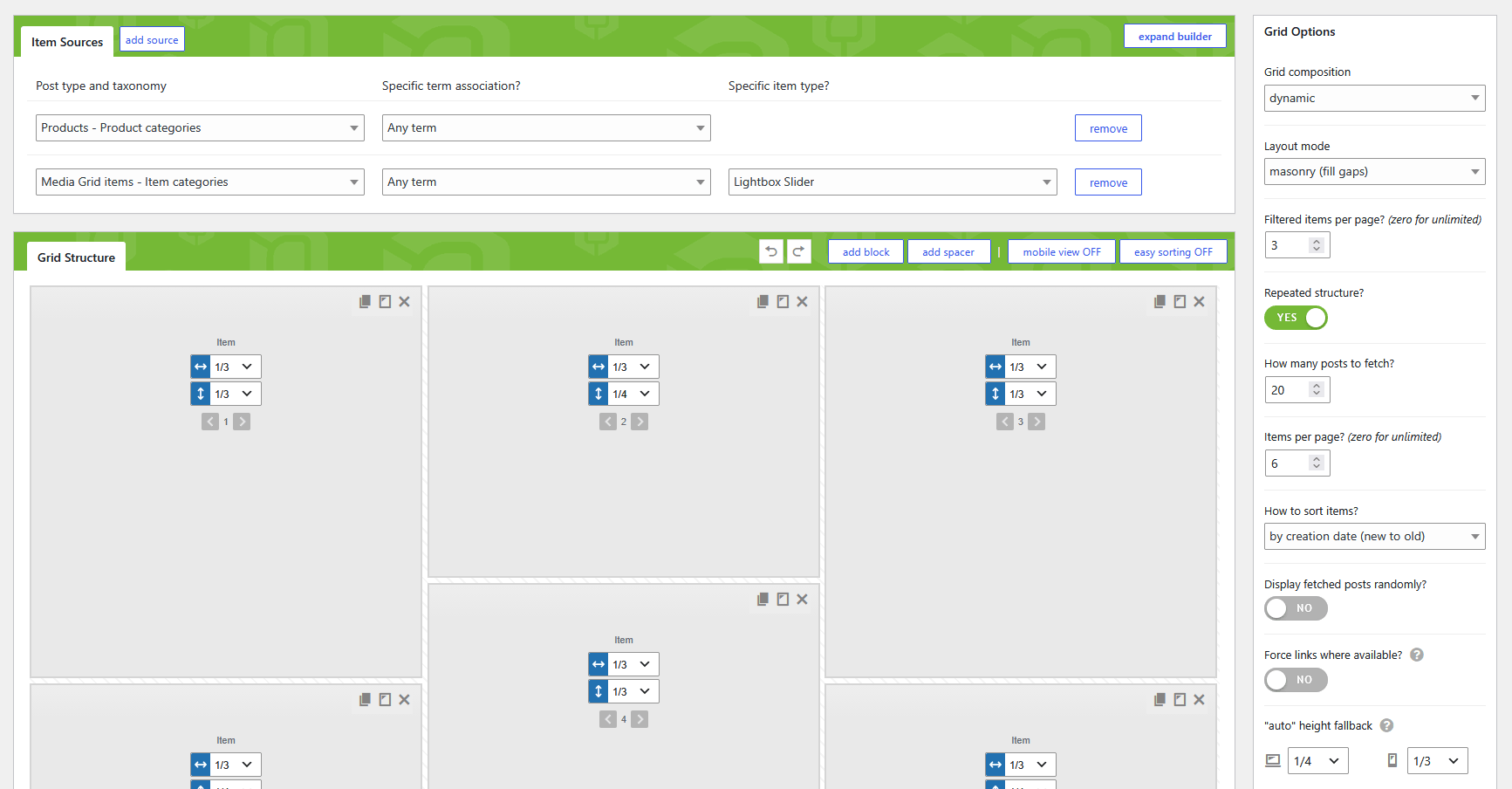
- Go to Media Grid → Grid Builder, create a grid with Add New Grid
- Set Grid composition to dynamic
- In Item Sources click add source and choose the Post type and taxonomy, for example "Posts - Categories"
- Optionally use Specific term association? to take only one category, for example "News"
- Add more sources if you want to mix content types
Step 2: draw the layout
In Grid Structure you don't pick posts, you draw the empty blocks they will fill:
- Click add block as many times as the positions you want
- Set width and height of each block. For example a big block for the latest post, then two medium and four small ones
- Switch on mobile view and set the sizes for phones
- Use add spacer if you want empty spaces in the design
Then check Repeated structure?: the pattern repeats for all the posts, so the grid keeps the same rhythm however many posts you have.
Try it on your blog: start your free 7-day trial and turn your posts into a grid in a few minutes.
Step 3: quantity, order and links
In Grid Options:
- How many posts to fetch?: up to 100 (visible when the structure is repeated)
- Items per page?: turns on pagination, zero shows everything
- How to sort items?: by creation date, modification date or alphabetically
- Display fetched posts randomly?: a different order at each visit, nice for portfolios and testimonials
- Force links where available?: every post becomes a direct link to its page, instead of opening the lightbox
Lightbox or link? For a blog, links are usually the right choice, since the article page is what you want indexed and read. The lightbox is perfect for short content, like projects, events or team members. You can also decide post by post: in the post editor, the Media Grid Integration box has Direct link to post?, in the same page or in a new one.
Save the grid.
Step 4: publish it
Add the grid with the Media Grid Gutenberg block or Elementor widget, or with the shortcode:
[ mediagrid gid="20" title_under="1" pag_sys="inf_scroll"]title_under="1"shows the post title under each cover, attached to it,"2"detachedpag_syschooses the pagination: numbered pages, arrows, dots,inf_scrollfor a "show more" button, orauto_inf_scrollfor automatic infinite scroll
Use it as your blog page, as a "latest news" block in the homepage, or as an archive for a custom post type.
Filters and search
Add filter="1" and search="1" to let visitors browse by topic. The standard filters use the Media Grid Item Categories: assign them to each post in the Associated categories field of the Media Grid Integration box. This way you choose exactly which filters to show, for example three main topics instead of your thirty blog categories.
Want the filters to use your existing WordPress categories and tags, without assigning anything? The Advanced Filters add-on turns any taxonomy into a filter section, also combined: categories, tags, product categories or the taxonomies of your custom post types. With the Filters Builder you also add sorting and search to the same filter, place it on top or in a sticky side column, and the chosen options go in the URL, ready to share.
Title, date and "Read more" on the covers
A blog grid needs more than an image. The Overlay Manager add-on lets you design what appears over or under each cover:
- the post title and excerpt. Without an excerpt, the beginning of the text is used
- date and author, with the
%DATE%and%AUTHOR%placeholders - a "Read more" button with the Go to post/product behavior, while a click on the image can still open the lightbox
- a second image on hover, from the Media Grid - Overlay Image box of each post
Both add-ons are included in the Media Grid Bundle Pack.
Real-world examples
- Blogs and magazines: homepage with the latest post big, the others around it, infinite scroll
- Agencies: a "latest projects" grid from the portfolio post type, random order
- Event organizers: upcoming events from an events post type, filtered by type
- Real estate: properties from a custom post type, with filters by area
- Shops: latest products mixed with blog posts, with a WooCommerce quick view lightbox
Frequently asked questions
Do new posts appear automatically?
Yes. A dynamic grid queries your posts every time, so a new post takes its place in the layout as soon as it's published.
Does it work with custom post types?
Yes, with any post type that has a featured image and a taxonomy, including WooCommerce products and the post types of your theme.
Can I show only one category?
Yes. Use Specific term association? in the source. You can create one grid per category, or one grid with filters.
Can posts have a video cover?
Yes. In the post editor, the Media Grid - Featured video box adds a video to the cover, played on hover or always. See more in the WordPress video gallery guide.