
Keep your prices for approved customers only.
Guests see your products but not what they cost, and they can't buy until they log in. Ideal for wholesale, B2B and dealer stores.
Quick answer: WooCommerce can't hide prices on its own. With PrivateContent you:
- turn on the WooCommerce purchase lock for the whole store, or only for some products and categories
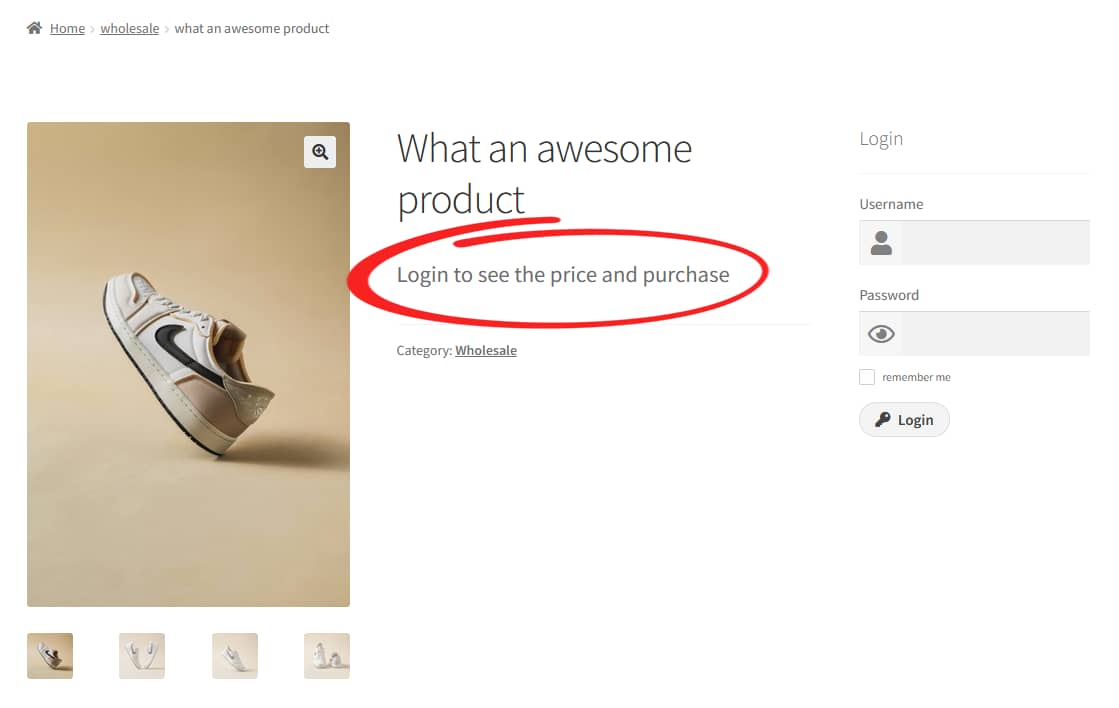
- guests see a custom text instead of the price ("Login to see the price and purchase") and can't add products to the cart
- customers log in with their PrivateContent account and see prices and buy as usual
Why hide prices from guests
- Wholesale and B2B: your dealer prices shouldn't be visible to end customers or competitors
- Approved buyers only: you want to check who buys before they can order
- Lead generation: "log in to see prices" turns anonymous visitors into registered contacts you can follow up
- Agreements with partners: some brands require that online prices are only shown to authorized resellers
Hiding the price with CSS or a theme trick isn't enough: the price is still in the page code, and the product can still be added to the cart. You need the store itself to stop showing prices and selling to guests.
Want to try it on your store? Start your free 7-day PrivateContent trial and lock your prices in a few minutes.
What you need
- WordPress with WooCommerce active
- PrivateContent: the WooCommerce options appear automatically when WooCommerce is enabled
Step 1: lock prices for the whole store or some products
PrivateContent's WooCommerce products purchase lock works on visitors who aren't logged in. Choose how wide it should be:
- Whole store: enable the global purchase lock in the PrivateContent settings and every product is locked for guests
- Only some products or categories: open a product or a product category and set the lock in the Restrictions Wizard
Locks are inherited like other PrivateContent restrictions: products follow their category, child categories follow their parent, and a setting on a single product or category overrides what it would inherit. Lock the "Wholesale" category once and every product added to it later is protected automatically.
Step 2: customize the message guests see
Where the price would be, guests see a text. The default is "Login to see the price and purchase." and you can change it in the related settings option. Make it work for you:
- "Wholesale prices: log in or apply for an account"
- "Prices reserved for authorized dealers"
- "Register for free to see prices"
Locked products can't be purchased by guests, so nobody can sneak an order through.
Step 3: let customers request an account
Build a registration form with PrivateContent's form builder: company name, VAT number, phone, anything you need to qualify a buyer. Publish it with:
[ pc-registration-form]New sign-ups can stay in pending approval status until you check them, so only real resellers get to see your prices. Assign them to a category such as "Resellers" automatically, using the form's category options.
Customers should buy with their own WooCommerce account? Enable PrivateContent's WordPress user sync: each PrivateContent user gets a linked WordPress user, with the same username, password and email, that WooCommerce can use at checkout.
Step 4: add login to the shop
Make logging in effortless, right where the customer is looking at prices:
- add
[ pc-login-form]to a "Reseller login" page, withredirectpointing back to the shop - open the login form in a lightbox from a header button
- show a "Reseller login" menu item to guests only and "My account" to logged-in customers. See how to show menu items to specific users
Hide entire products or categories
Sometimes hiding the price isn't enough: a whole product line should be invisible to the public. Use the Redirect restriction on that product category: products disappear from the shop, site search and category lists for anyone not allowed, and guests who open a direct link are sent to your login page.
Tip: the Restrictions Wizard is shown by default on posts, pages and categories. To use it on WooCommerce products and product categories, enable those post types and taxonomies in the PrivateContent settings first.
You can mix both approaches: show your catalog publicly with prices hidden, and keep a reserved line visible only to your best resellers.
Real-world examples
- Wholesalers: public catalog for visibility, prices only for approved retailers
- Manufacturers: dealer portal with price lists and downloadable sheets. Add private files for resellers
- Professional supplies: products sold only to licensed professionals, checked at registration
- Member stores: prices and purchases reserved to members of an association or club
Building a full area for your resellers? Read how to create a private client portal in WordPress.
Frequently asked questions
Can WooCommerce hide prices without a plugin?
Not properly. WooCommerce has no option to hide prices from guests. Theme tricks can hide the price visually, but it stays in the page code and the product can still be bought.
Can guests still see my products?
Yes, if you only lock prices: products stay visible and indexable, which is good for SEO, but the price is replaced by your message and purchase is blocked. If you prefer, you can hide whole categories with the Redirect restriction.
Can I hide prices only on some products?
Yes. Set the lock on single products or product categories with the Restrictions Wizard, or enable it globally for the whole store.
Can I approve customers before they see prices?
Yes. Registrations can wait in pending approval status, so prices are only visible to customers you've accepted.
Can I show different prices to different customer groups?
PrivateContent controls who can see prices and buy, not the price amounts. For tiered pricing by group, pair it with a dedicated WooCommerce pricing plugin.
Can I try it before buying?
Yes. You can request a free 7-day trial license and build your portal on your own site. Every purchase is also covered by a money-back guarantee.