
WordPress has no private files: everything you upload gets a public URL.
Here's how to give each client, member or student their own files, lock direct links, and share folders with specific user groups.
Quick answer: to share private files with specific users in WordPress, you need a plugin that stores files outside the public Media Library and checks who is logged in before every download. With PrivateContent and its Files Manager add-on you:
- upload files directly to one user's account (personal files), or into folders restricted to user categories (shared files)
- publish them with a shortcode, so each user sees only what they're allowed to see
- keep direct links locked: even the real file URL is useless without permission
Why WordPress files are never private by default
When you upload a PDF to the Media Library, WordPress saves it in /wp-content/uploads/ with a predictable address like yoursite.com/wp-content/uploads/2026/10/contract.pdf. That address works for everyone. It doesn't matter if the page linking it is private, password protected or visible only to members: whoever has the link, or guesses it, downloads the file. Search engines can index it too.
So "hiding" a file means two separate things, and you need both:
- Hiding the link, so only the right users see it on the page
- Protecting the file itself, so the server refuses to deliver it to anyone else
Most solutions only do the first. That's the gap this guide closes.
4 ways to share private files in WordPress, compared
| Method | Direct URL protected? | Different files per user? | Client area included? |
|---|---|---|---|
| Password-protected page | No | No, one password for all | No |
| Membership plugin hiding the links | Usually no | Only by level | Yes |
| File-sharing-only plugin | Yes | Yes | No, files only |
| PrivateContent + Files Manager | Yes | Yes, per user and per category | Yes: private pages, menus, registration, WooCommerce |
If all you need is a shared folder, a file-sharing plugin can be enough. If those files live inside a real client area, with private pages, a personal dashboard and registration forms, a single system that manages users, content and files together saves you from gluing three plugins together. That's what PrivateContent does.
Want to see it live first? Log in to the Files Manager demo with the two test users and compare what each one sees, or start your free 7-day trial.
What you need
- WordPress 5.5 or newer
- PrivateContent, which manages your private users and user categories, separate from WordPress accounts
- The Files Manager add-on
- At least one user category and one user. Starting from scratch? Follow the initial required steps first
How the protection works
Files Manager doesn't use the Media Library. Files are stored in a dedicated folder (wp-content/uploads/pc_files) that blocks direct access, and they're delivered through links like yoursite.com/pcfm/123/contract.pdf. Every time one of these links is opened, the plugin checks who is asking before sending the file. A visitor who isn't logged in, or a user without permission, gets an error page instead. Sharing or guessing a link gets nobody anywhere.
Method 1: share files with one specific user
Best for invoices, contracts, reports, project deliverables and anything that belongs to one person only. You create an upload field once, then fill it with files for each user.
Step 1: create an upload field
- In the WordPress admin, go to PrivateContent → Files Manager. This is the Files Hub
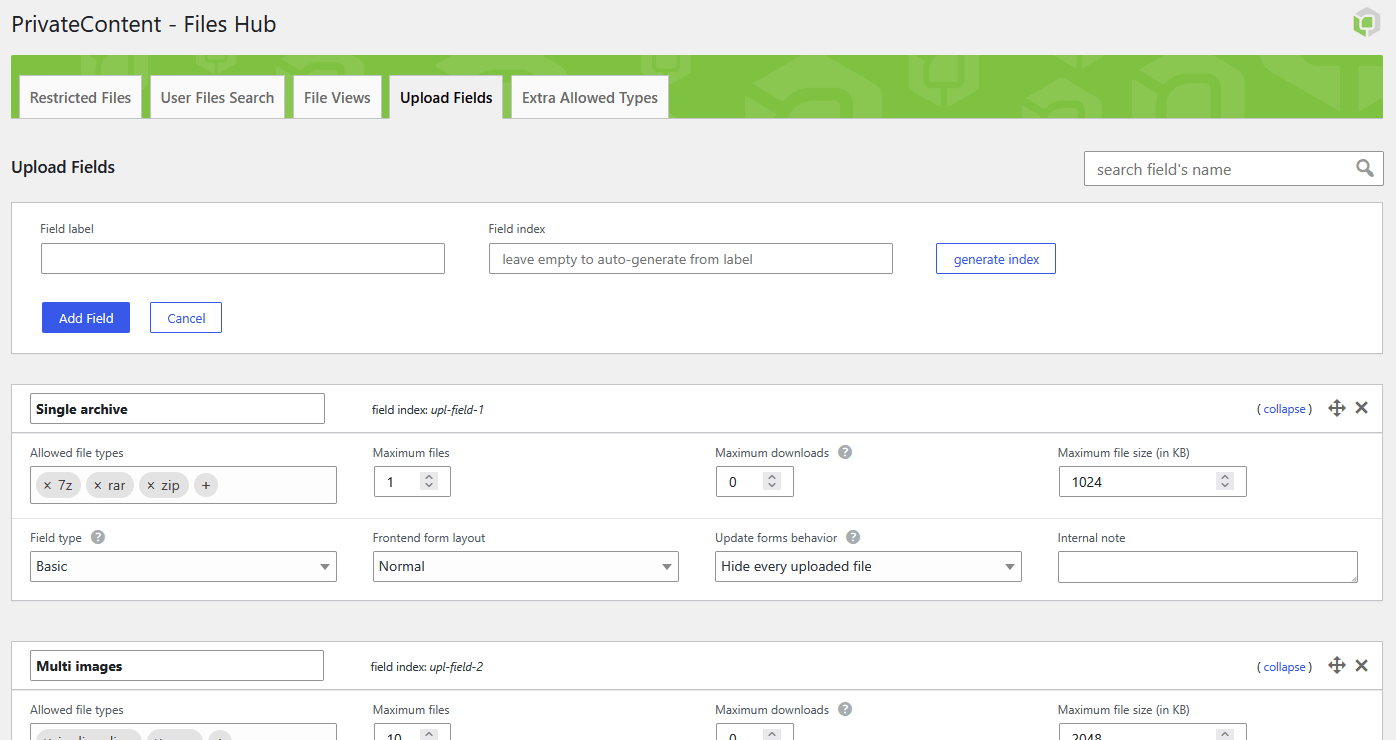
- Open the Upload Fields tab and click Add Field
- Give it a clear Field label, for example "Client documents". The Field index is generated from the label if you leave it empty; you'll use it in the shortcode
- Choose the Allowed file types (for example PDF, DOCX, XLSX, ZIP) and, if needed, Maximum files and Maximum file size
- Pick the Field type:
- Basic: a simple list of files, no folders
- Common subfolders: the same folders for everyone, for example "Invoices" and "Contracts"
- Admin-defined subfolders: you create the folders for each user
- Free folders structure: users can create their own folders too
- Click Update Fields
Step 2: upload files to a specific user
- Go to PrivateContent → Users List and open the user's dashboard
- Open the User Files tab: there's a box for each upload field
- Click Upload files in the "Client documents" box and select the files. If the field has folders, choose the folder first
Done: those files now belong to that user only. Nobody else can see or download them, not even users in the same category.
Step 3: show each user their own files
Create a page, for example "My documents", and add this shortcode, replacing client-documents with your field index:
[ pcfm-user-files-manager field_id="client-documents"]Each logged-in user sees a desktop-like file manager with only their own files, with search, sorting and folders. Visitors who aren't logged in see nothing. Optional parameters: files_per_page (default 20), sorting (for example id_desc, newest first) and date_format.
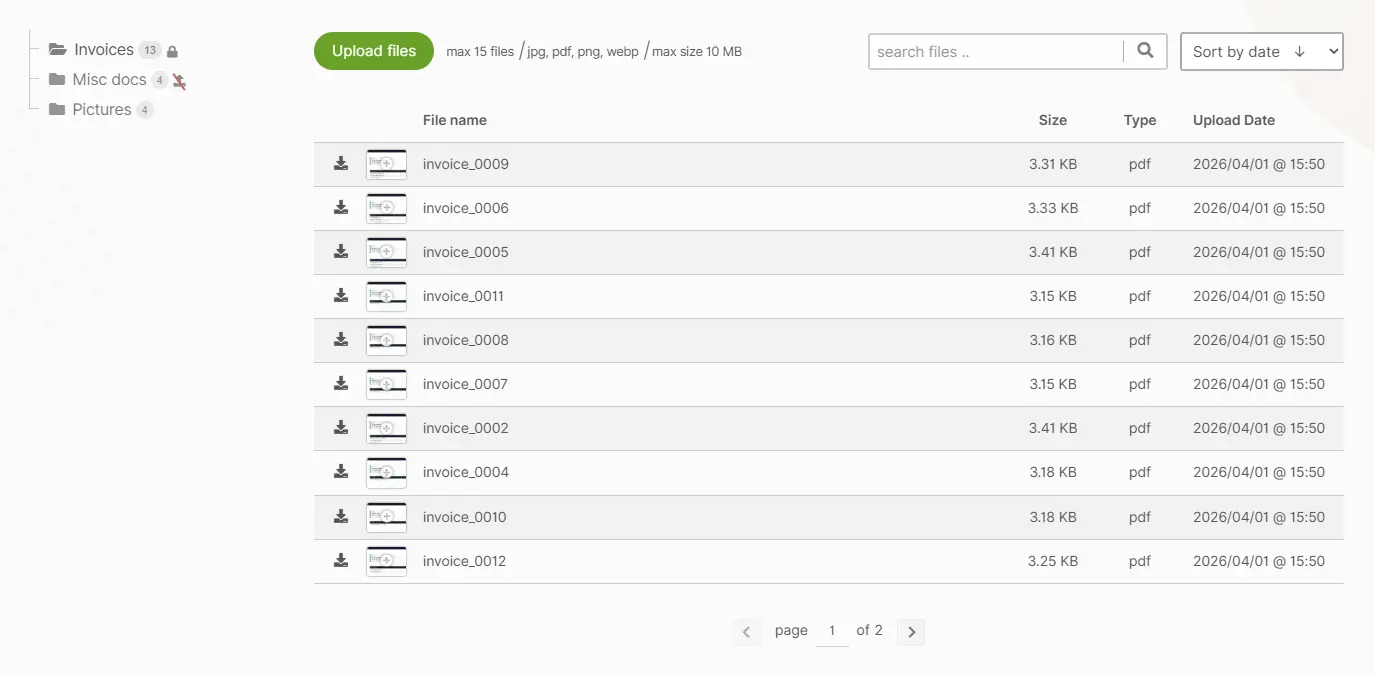
Prefer a read-only list with a different look? Create a File View: in the Files Hub open File Views, set What to display? to User Upload Fields, choose your field and a layout (seven are available, from simple lists to image previews), save, and paste its shortcode:
[ pcfm-files-view view_id="12"]Want everything in one place? Put the shortcode inside the Users Reserved Page: every client lands on a single URL showing their own content and their own files. We explain the full setup in how to show a private page to each user.
Method 2: share files with a group of users
When the same files go to many people (price lists for resellers, material for one class, documents for a client's whole team) use Restricted Files and decide who can open each folder.
Step 1: create folders and upload files
- Go to PrivateContent → Files Manager and stay in the Restricted Files tab
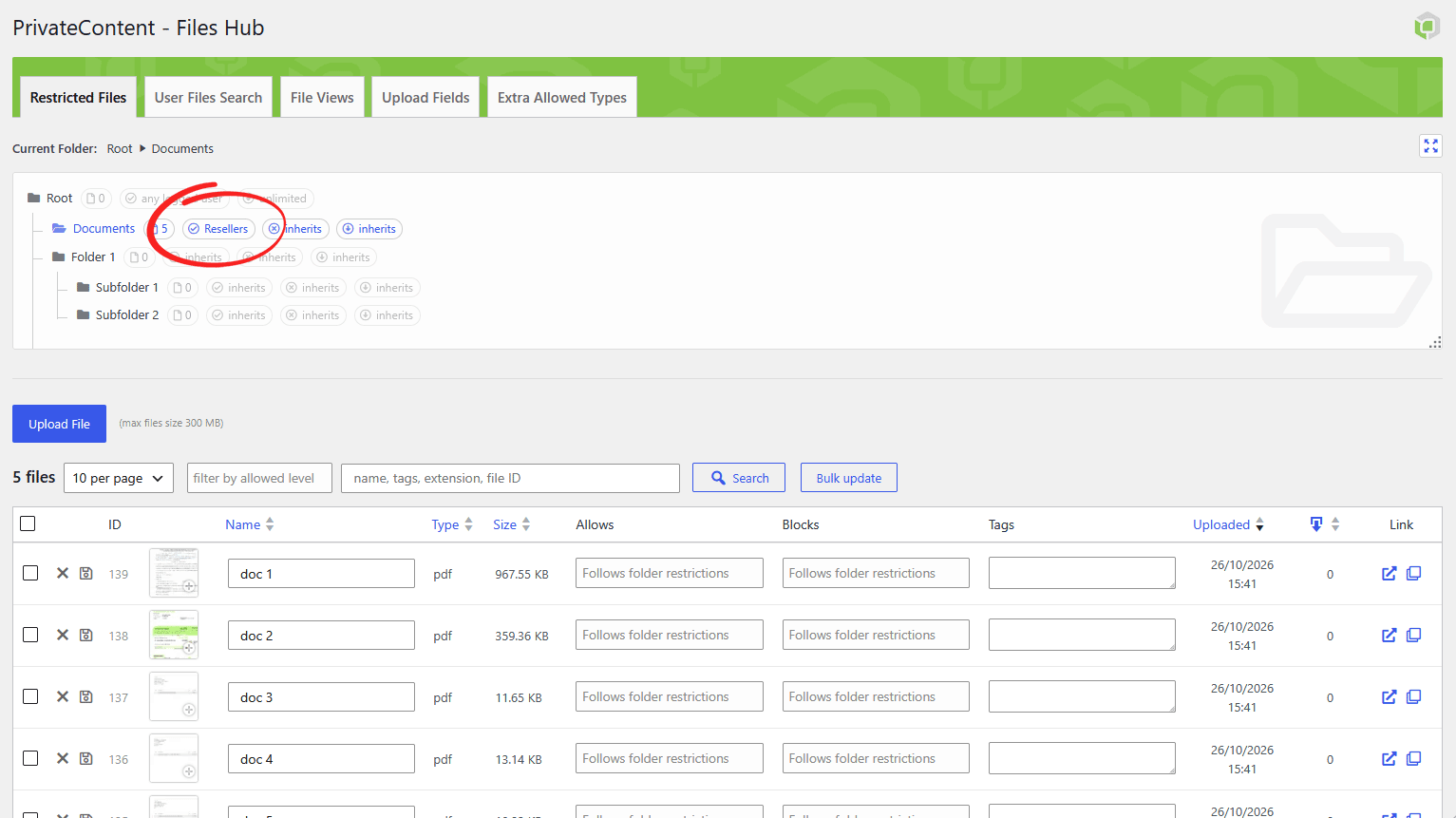
- Click the + icon next to Root to add a folder, for example "Reseller price lists". Subfolders can go as deep as you need
- Select the folder and click Upload File
Step 2: choose who can access each folder
- Open the folder's restrictions and use Allows to pick the user categories that can access it, for example "Resellers". You can also choose Any logged user, or Anyone for a public folder
- Use Blocks to exclude categories that would otherwise be allowed
- Optionally set a Downloads limit per user
- Click Save folder restrictions
Subfolders inherit their parent's rules until you change them, so you set things up once at the top. Single files can also get their own restrictions when one document needs different rules from its folder.
Step 3: publish the files
Create a File View with What to display? set to Restricted Fields, choose the folder and a layout. For bigger archives set Extra view mode to Folders navigator, so users can browse subfolders like on their computer. Paste the view shortcode on any page: each user only sees the folders and files their category allows.
Which method should you use?
| You need to share… | Use |
|---|---|
| Invoices, contracts or reports for one client | Method 1: upload field |
| The same documents for a whole category | Method 2: restricted folder |
| Personal and shared files in one client area | Both, on the same page |
Let users upload files to you
File sharing usually goes both ways: you send reports, clients send back signed contracts, receipts or photos. Upload fields handle that too:
- add an upload field to a PrivateContent registration form or profile form, for example to collect documents at sign-up
- or let users drag and drop files into the frontend file manager from Method 1
File types, size, number of files and even image dimensions are validated automatically. You'll find every user's uploads in the User Files Search tab of the Files Hub, with filters to narrow them down.
Notifications, download limits and tracking
- Email the user when new files arrive. With the Mail Actions add-on a Notify user button appears next to Upload files. You can also be emailed when users upload something
- Limit downloads per user, per folder or per upload field
- Track downloads as Google Analytics events, or get a full per-user log with the User Activities add-on
- Preview without downloading: images, videos and PDFs can open in a lightbox
Real-world use cases
- Accountants and consultants: each client finds their invoices, tax returns and reports in a personal area
- Web and design agencies: deliver drafts and final files per project, and collect material from clients
- B2B and wholesalers: price lists and catalogs visible only to approved resellers. Pair it with hidden WooCommerce prices for guests
- Schools and course creators: material per class or per student, with download limits
- Photographers: each client gets their own set of final images, previewed in a lightbox
Building a complete area for your clients? Read how to create a private client portal in WordPress.
Frequently asked questions
Are WordPress Media Library files private?
No. Every file in the Media Library has a public URL that works for anyone who has it, even if the page linking it is private. To make files truly private you need a plugin that stores them outside the public uploads and checks permissions before every download.
Can someone download a private file if they get the link?
No. Files Manager links are checked on every request. A visitor who isn't logged in, or a user without permission, gets an error page instead of the file.
Why not just use a password-protected page?
A password-protected page hides the page, not the files. Anything linked from it stays in the Media Library with a public URL, and one shared password can't tell clients apart. With PrivateContent every user has their own login and sees only their own files.
Do my clients need WordPress accounts?
No. PrivateContent has its own user system, separate from WordPress users, so clients never see the WordPress admin. You can create users by hand, let them register through a form, or import them from a CSV file.
Can users upload files to me too?
Yes. Add an upload field to a PrivateContent registration or profile form, or let users upload from the frontend file manager. Every user's uploads are listed in the User Files Search tab of the Files Hub.
Can I see who downloaded a file?
Yes. Downloads can be tracked as Google Analytics events, and the User Activities add-on gives you a per-user download log.
Can I try it before buying?
Yes. You can request a free 7-day trial license and build your portal on your own site. Every purchase is also covered by a money-back guarantee.