
One URL, different content for every logged-in user.
Give each client, member or student a personal page with their own information, files and private conversation, without creating hundreds of pages.
Quick answer: instead of creating one page per user, use a single page whose content is replaced for each logged-in user. With PrivateContent's Users Reserved Page you:
- choose one WordPress page as the container, for example "My page"
- write each user's personal content from their account in the admin
- send users to that page after login: everyone opens the same URL and sees only their own content
Why "one page per user" doesn't scale
The first idea most people have is to create a page for each client and protect it with a password or a membership rule. It works for three clients. With thirty it becomes a mess:
- dozens of near-identical pages to create, protect and keep updated
- every page has its own URL, which can be guessed, shared or end up on Google
- passwords get forwarded, and one shared password can't tell users apart
- changing the layout means editing every single page
How the reserved page works
With PrivateContent, each user has a reserved page by default, reachable only by them. You pick one WordPress page as the container: when a user opens it, PrivateContent fills it with that user's content. Same URL for everyone, no visible parameters, and nothing to guess: a guest or another user simply can't load someone else's content.
| One page per user | PrivateContent reserved page | |
|---|---|---|
| Pages to manage | One per user | One in total |
| URL | Different for each user, guessable | The same for everyone, safe |
| Layout changes | Edit every page | Edit once |
| Private files and comments | Extra plugins needed | Built in or via add-on |
Try it yourself: open the reserved page demo and log in with the two test accounts to watch the same page change. Or start your free 7-day trial.
Step 1: choose the container page
- Create a normal WordPress page, for example "My page". Add any content you want everyone to see around the personal part: a heading, a welcome line, links
- Open the PrivateContent settings, Main Options → Users Reserved Page, and select that page as the container
- Save
Step 2: decide where personal content appears
You have three options, from simplest to most flexible:
- Replace the page content (default): the personal content takes the place of the page content
- Placeholder: write
%PC-USER-PAG-CONTENT%where personal content should appear, keeping your own text around it. Guests don't see the placeholder - Shortcode: place
[ pc-user-pvt-page-contents]anywhere on the site, for example inside a page builder layout or a client dashboard
Using Elementor? Disable its "Improved CSS Loading" optimization for the reserved page to display correctly.
Step 3: write each user's content
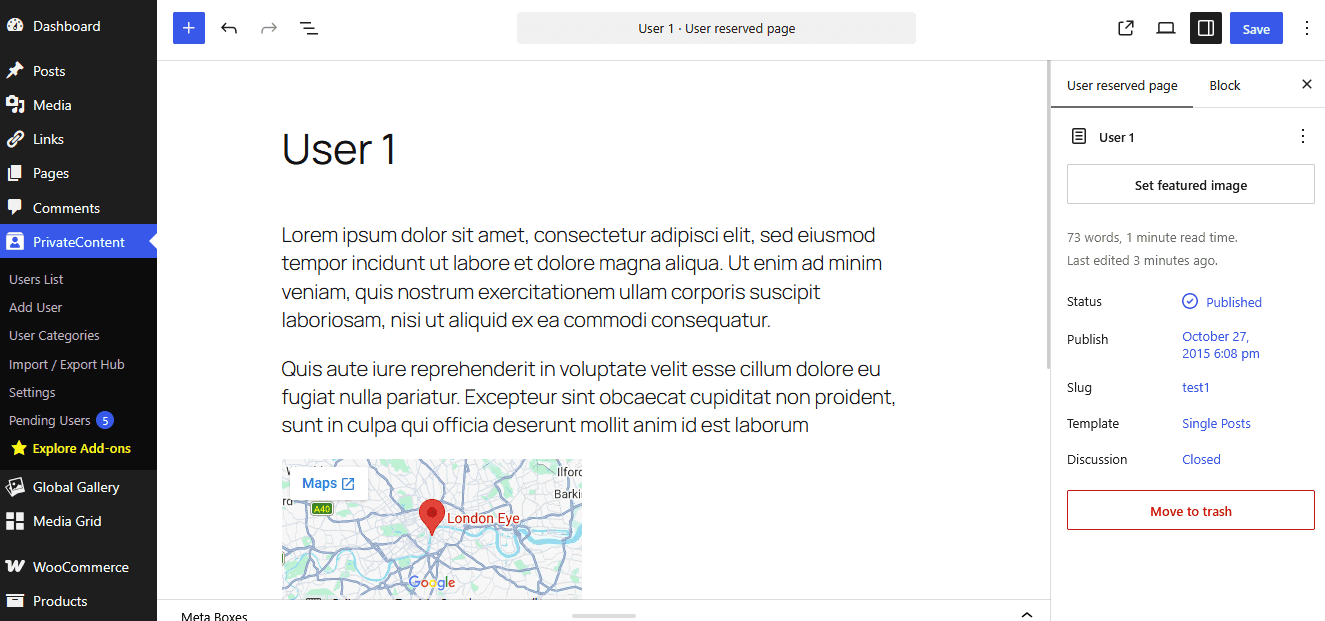
Each user's personal content is managed from their account: open PrivateContent → Users List, select the user and edit their reserved page content with the WordPress editor. Write anything you'd put in a normal page: text, images, videos, buttons, shortcodes.
Some ideas:
- Agencies: project status, next deadlines, links to staging sites
- Coaches and trainers: personal program, notes from the last session
- Accountants: what's due, what's missing, summary of the year
- Schools: grades, feedback, individual material
Step 4: send users to their page after login
While totally optional, you can make the reserved page the first thing users see. On your login page use:
[ pc-login-form redirect="https://yoursite.com/my-page/"]Then add a "My page" link to your menu, visible only to logged-in users. See how to show menu items to specific users.
Add files and private comments
- Personal files: with the Files Manager add-on, add
[ pcfm-user-files-manager field_id="client-documents"]to the reserved page and each user sees their own documents. Guide: how to share private files with specific users - Private comments: enable comments on the page and sync users with WordPress, and each user gets a private conversation with you right on their page
- Content by category: around the personal part, show blocks only to some groups with
[ pc-pvt-content allow="3"]...[ /pc-pvt-content]or the Gutenberg and Elementor visibility options
Put it all together and you have a complete client area. Full walkthrough: how to create a private client portal in WordPress.
Frequently asked questions
Can a user see another user's private page?
No. The reserved page always loads the content of the logged-in user. There's no parameter in the URL to change, so there's nothing to guess or share.
What do guests see on the reserved page?
Guests don't get any personal content. You can restrict the page so they're redirected to your login page, or show them a message with login and registration buttons.
Can I disable the reserved page for some users?
Yes. The reserved page is active for every user by default, and you can turn it off for specific users.
Does it work with page builders?
Yes. Use the [ pc-user-pvt-page-contents] shortcode inside any Gutenberg, Elementor, Divi or WPBakery layout.
Do users need WordPress accounts?
No. PrivateContent has its own user system. WordPress sync is only needed for extras like private comments.
Can I try it before buying?
Yes. You can request a free 7-day trial license and build your portal on your own site. Every purchase is also covered by a money-back guarantee.