
Guests see "Login", clients see "Client area" and "Logout", resellers see "Price lists".
Give every visitor the menu that fits them, straight from Appearance → Menus, without code or duplicate menus.
Quick answer: WordPress menus show the same items to everyone. With PrivateContent every menu item gets a visibility field:
- go to Appearance → Menus and expand a menu item
- choose who can see it: guests, any logged-in user or specific user categories
- save the menu: each visitor now sees only the items meant for them
Why one menu for everyone doesn't work
As soon as your site has a private area, a single menu creates problems:
- guests click "Client area" and hit a login wall, which feels broken
- logged-in users still see "Login" and "Register", which is confusing
- links to member-only sections reveal what exists behind the login
- different groups (clients, resellers, staff) need different shortcuts
Creating a separate menu for each case and swapping them with code is fragile, and every theme handles it differently.
How menu visibility works in PrivateContent
PrivateContent adds a restriction field to every item in Appearance → Menus. You keep one menu and decide, item by item, who sees it. The menu stays the one your theme already displays, so it also works with header builders and menu widgets that use WordPress menus.
| Menu item | Guests | Clients | Resellers |
|---|---|---|---|
| Home, Products, Contact | ✅ | ✅ | ✅ |
| Login, Register | ✅ | ⛔ | ⛔ |
| Client area, My documents | ⛔ | ✅ | ⛔ |
| Price lists | ⛔ | ⛔ | ✅ |
| Logout | ⛔ | ✅ | ✅ |
See it live: log in to the PrivateContent demo with the test accounts and watch the site change, or start your free 7-day trial.
Step 1: set visibility on each menu item
- Go to Appearance → Menus and select your main menu
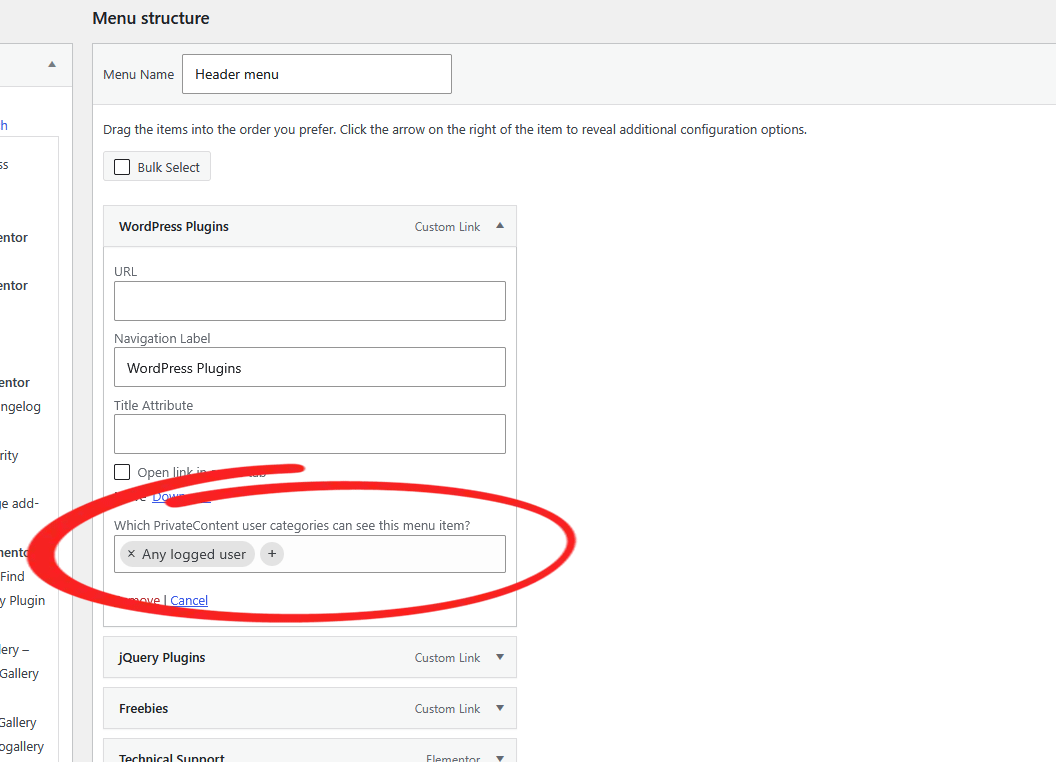
- Expand the item you want to restrict: you'll find the PrivateContent field below the standard options
- In Which PrivateContent user categories can see this menu item? choose Unlogged Users (guests only), Any logged user, or one or more user categories. Leave it empty to show the item to everyone
- Click Save Menu
The field is attached to existing items: when you add a new item, save the menu first, then set its visibility.
Step 2: add login and logout links
- Login: add your login page (the one with
[ pc-login-form]) and make it visible to guests only - Register: add your registration page and make it visible to guests only
- Logout: add a Custom Link with the URL
https://yoursite.com/?pc_logoutand make it visible to logged-in users only. Adding?pc_logoutto any URL of your site logs the user out - My page: link the reserved page where each user finds their own content
Step 3: build menus for each user group
Use user categories to give each group its own shortcuts. A few examples:
- Clients: Client area, My documents, Support
- Resellers: Price lists, Orders, Marketing material
- Students: Course material, Schedule, Grades
- Staff: Internal procedures, Team files
Since a user can belong to several categories, they'll see every item allowed for any of their categories. Building a complete private area? Follow how to create a private client portal in WordPress.
Hide the link and lock the page
The menu field only controls the link. For a private page, do both:
- lock the page with the Redirect restriction: whoever isn't allowed is sent to your login page, and the page is removed from site search, archives and post lists
- hide its menu item with the same user categories, so nobody sees a link they can't open
Widgets and page sections
The same logic works beyond menus:
- Widgets: show or hide sidebar and footer widgets by user category
- Gutenberg blocks and Elementor elements: set visibility on single blocks, for example a "Become a reseller" banner only for guests
- Any content: wrap it in
[ pc-pvt-content allow="all"]...[ /pc-pvt-content]to show it to logged-in users only
Frequently asked questions
Can I hide a menu item from logged-in users?
Yes. Set the item to be visible to guests only: it's the classic setup for Login and Register links.
Do I need a separate menu for each user group?
No. You keep one menu and set visibility on each item. Every visitor sees only the items meant for them.
Does hiding a menu item protect the page?
No, and that's true for any menu plugin: hiding a link doesn't lock the page behind it. To protect the page too, lock it with PrivateContent's Redirect restriction and give its menu item the same user categories.
Does it work with my theme's header?
Yes, if the header displays a menu created in Appearance → Menus, which is the case for most themes and page builder menu widgets.
How do I add a logout link to the menu?
Add a Custom Link with your site URL followed by ?pc_logout, for example https://yoursite.com/?pc_logout, and make it visible to logged-in users only.
Can I try it before buying?
Yes. You can request a free 7-day trial license and build your portal on your own site. Every purchase is also covered by a money-back guarantee.