
Every photo you publish can be downloaded and reused in a couple of clicks.
Here's how to brand your gallery images with a watermark automatically, keep the original files clean, and make image theft a lot less convenient.

Quick answer: WordPress has no watermark feature. With Global Gallery you:
- upload your logo once and choose position, size and opacity
- turn the watermark on for the galleries you want: thumbnails and lightbox images get branded
- keep your originals untouched: Global Gallery creates watermarked copies, so you can change or remove the watermark at any time
Why watermark your images
A watermark won't make copying impossible, nothing on the web does. What it does is change what happens after a photo is copied:
- Your name travels with the photo: shared on social media or reposted on another site, it still points people to you
- Reuse becomes less attractive: a branded photo is useless for a competitor's portfolio or a product listing
- Proofs stay proofs: photographers can show a full shoot to clients without handing out the final files
Ways to watermark images in WordPress, compared
| Originals | Change the watermark later | Works with cloud photos | |
|---|---|---|---|
| Watermark in Photoshop or Lightroom before upload | You upload branded copies | Re-export and re-upload everything | Manual |
| Dedicated watermark plugins | Usually stamp the files in your Media Library | Often only with backups or regeneration | No |
| Global Gallery | Untouched, watermarked copies are separate | Yes, change the settings and the copies update | Yes, Google Drive, Dropbox, Amazon S3 and more |
And you get the gallery too: layouts, lightbox, filters and sliders, all with the same watermark. Coming from another plugin? See how Global Gallery compares with Envira Gallery and Imagely.
Step 1: prepare the watermark image
The best watermark is a PNG with a transparent background: your logo or name, in white or light gray, with a subtle shadow so it stays readable on light and dark photos. JPG and GIF work too, but a JPG always has a solid background.
Make it big enough, for example 800 pixels wide: Global Gallery can scale it down to fit each image, and a large source keeps it sharp.
Step 2: set position, size and opacity
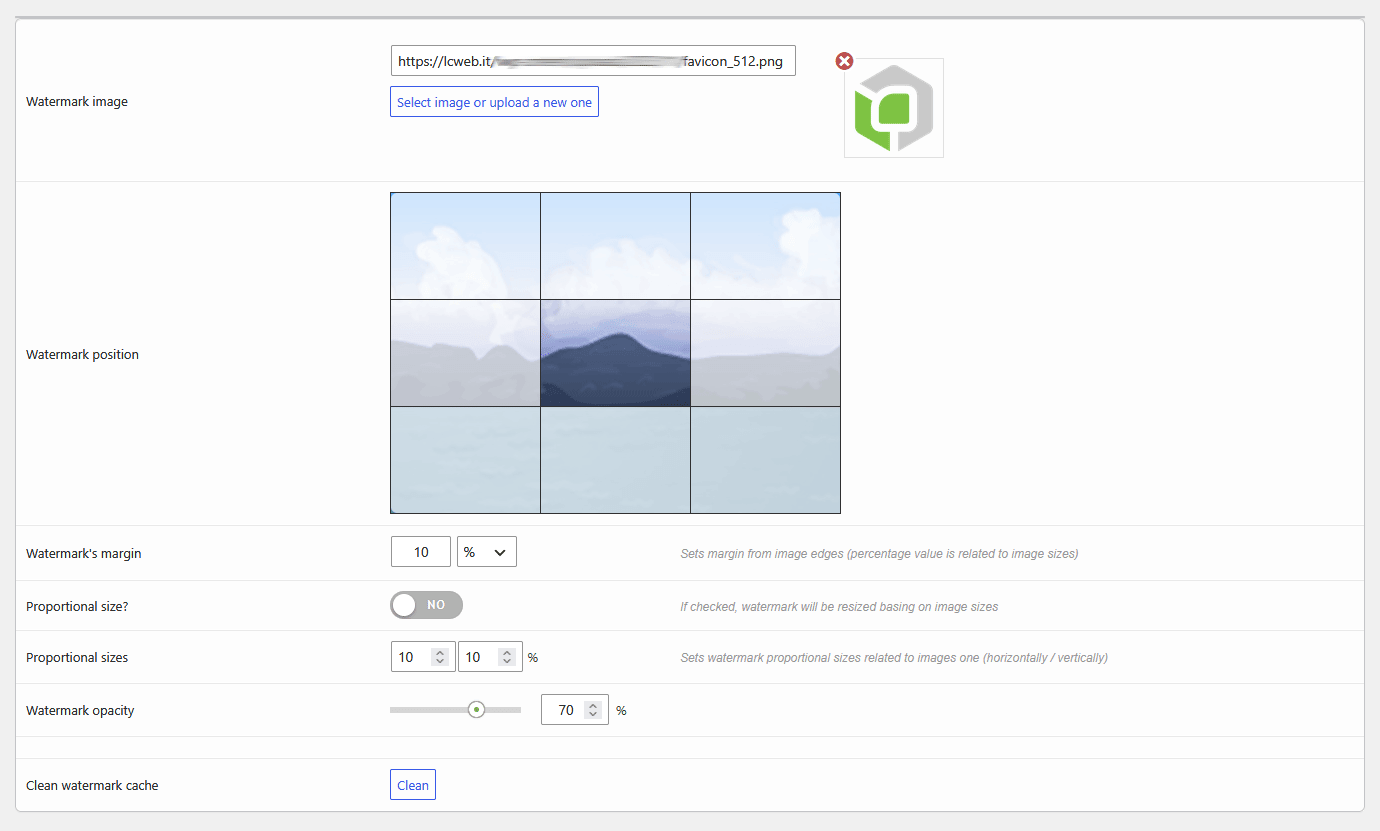
Go to Global Gallery → Settings and open the Watermark tab:
- Watermark image: click Select image or upload a new one and pick your PNG from the Media Library
- Watermark position: click one of the 9 cells, for example bottom right for a discreet logo, or center for proofs
- Watermark's margin: distance from the image edges, in pixels or as a percentage of the image
- Proportional size?: turn it on and set Proportional sizes (for example 20%) so the watermark keeps the same proportion on small and large photos
- Watermark opacity: from 5% to 100%. Around 40-60% is a good balance between visible and elegant
- Save the settings
Step 3: turn it on for your galleries
The watermark is applied only where you want it, so you can brand your portfolio and leave, for example, your team photos clean:
- Galleries: enable the watermark option in the Gutenberg block or Elementor widget, or add it to the shortcode:
[ g-gallery gid="123" watermark="1"] - Sliders, carousels and Image-to-Gallery: same attribute, for example
[ g-slider gid="123" watermark="1"] - Galleries Collection: tick Use watermark? on each gallery in the Collection Builder
- Standard WordPress galleries: in the Global Gallery box of the post or page editor, let Global Gallery manage the page galleries and enable Use watermark?
Both the thumbnails and the large image in the lightbox are watermarked, so there's no clean version one click away.
See your logo on your photos: start your free 7-day trial, upload your watermark and preview a gallery in a few minutes.
Step 4: speed it up with the watermark cache
Global Gallery creates each watermarked copy the first time the image is shown, and then reuses it. The copies are saved in /wp-content/uploads/gg_watermarked/, keeping the original file name, which is good for image search too.
For big galleries you can prepare everything in advance: open the gallery in the admin and use Create watermark cache in the Watermark Cache box. With many images it can take a while, but visitors will never wait for a copy to be generated.
What happens when you change your mind:
- New position, size, margin or opacity: Global Gallery creates new copies with the new settings automatically
- New watermark image: click Clean next to Clean watermark cache in the Watermark tab, so the copies are generated again with the new logo. It also frees disk space from old copies
- No more watermark: remove the option from the gallery. Your originals were never touched
Extra protection: right click and more
Pair the watermark with Disable right click? in Settings → Main Options → Images Protection. It disables the right click on gallery images, including on iPhone, so "Save image as" is no longer the easy way.
Let's be honest about the limits: a determined person can still take a screenshot, and the original files you uploaded to the Media Library keep their own address. The goal isn't to make copying impossible, but to make sure that every copy carries your name. Want to show photos only to some clients, like a private proofing gallery? Restrict the page with PrivateContent, which also handles private files for specific users.
Tips for a watermark that works
- Corner logo for portfolios: small, bottom right, 40-60% opacity. It brands without distracting
- Center watermark for proofs: bigger and more visible, so the photo can be judged but not used
- Use proportional size: a fixed-size logo looks huge on small photos and tiny on large ones
- Test on your lightest and darkest photos: a white logo with a soft shadow works on both
- Don't watermark everything: team photos, logos of partners and product shots for resellers usually look better clean
Frequently asked questions
Does the watermark change my original images?
No. Global Gallery creates separate watermarked copies and shows those. Your originals, in the Media Library or in the cloud, stay exactly as they are.
Can I watermark Google Drive or Dropbox photos?
Yes. The watermark works with every Global Gallery source, so a gallery from Google Drive or Dropbox gets the same branding, and nothing changes in your cloud storage.
Can I use a different watermark on some galleries?
There's one watermark image for the whole site. What you choose per gallery is whether to apply it or not.
Does the watermark slow down my site?
Only the very first time an image is shown, while its copy is created. After that the copy is served like any other image. Use "Create watermark cache" on large galleries to do that work in advance.
Does it work with WebP and AVIF images?
Yes. Global Gallery watermarks JPG, PNG, GIF, WebP and AVIF photos. The watermark itself should be a JPG, PNG or GIF, ideally a transparent PNG.