
You already wrote titles, captions, credits and keywords in Lightroom, Capture One or Photo Mechanic: typing them again in WordPress is time you won't get back. Here's how to upload whole photo folders, by FTP or drag and drop, and get galleries that read their IPTC data automatically.

Quick answer: WordPress doesn't use most of the IPTC data in your photos, and every image goes through the Media Library. With Global Gallery albums you:
- upload a folder of photos to your server, via FTP or from the GG Albums Manager
- let Global Gallery read title, caption, author and keywords from each file
- create a gallery from that folder and publish it with a block, a widget or a shortcode
Why photographers need more than the Media Library
The Media Library is fine for a few images per post. For a photographer who delivers 300 photos per shoot, it becomes the bottleneck:
- Upload limits: big shoots hit the server's upload size and time limits, while FTP has no such problem
- Data typed twice: captions, credits and keywords already live in the files, but you end up retyping them in WordPress
- A crowded library: every photo becomes a media item mixed with logos, banners and blog images
Professionals don't manage thousands of photos in WordPress. They cull, edit and caption them in Adobe Lightroom, Capture One, Photo Mechanic or Adobe Bridge, where a caption or a keyword can be applied to hundreds of photos in one click, with metadata presets and templates. The website should simply receive the result.
Global Gallery albums work differently. They are plain folders on your server, outside the Media Library: each folder is an album, each photo keeps its metadata, and you can fill them with the tools you already use, like FileZilla, Cyberduck or your hosting file manager.
Which IPTC data Global Gallery reads
For JPG files Global Gallery reads the IPTC fields that Lightroom, Photoshop, Capture One and Photo Mechanic write. For PNG, WebP and AVIF, which don't support IPTC, it reads the same data from XMP metadata:
| In Global Gallery | IPTC field (JPG) | XMP field (PNG, WebP, AVIF) | In Lightroom |
|---|---|---|---|
| Title | Object Name | dc:title, or Headline | Title |
| Description | Caption/Abstract | dc:description | Caption |
| Author | By-line, or Copyright Notice | dc:creator, or dc:rights | Creator, or Copyright |
| Tags | Keywords | dc:subject | Keywords |
When you export from Lightroom, make sure the Metadata section of the export dialog doesn't strip this data: "Copyright Only" would leave you with file names and nothing else. GIF files have no metadata, so they get the file name as title.
The workflow then takes three moves:
- caption and keyword the shoot in Lightroom, Capture One or Photo Mechanic, as you already do
- export the selected photos as web-sized JPGs, with their metadata, into a folder named after the album
- upload that folder to your site via FTP: the gallery is ready, with every caption already in place
Step 1: set up the albums folder
- Go to Global Gallery → GG Albums Manager
- If WordPress can't write files directly on your hosting, it asks for your FTP or SSH credentials once, the same way it does for plugin updates
- Click Manage base folder path. The suggested Albums basepath is
wp-content/uploads/gg_albums, with its matching Albums baseurl: keep it, or point both to another dedicated folder, then click Save
Only administrators can change these paths. Never use a folder inside the plugin: Global Gallery warns you, because albums there would be lost when uninstalling it.
Step 2: choose titles and duplicate handling
In Global Gallery → Settings → Main Options, the Global Gallery Albums section has two options:
- Where should image titles come from?: choose IPTC metadata to use the Title written in Lightroom, or File name if your file names are already meaningful. When the IPTC title is empty, the file name is used
- What to do when an image with the same name already exists?: Block upload keeps the existing file, while Upload with a progressive numeric suffix saves the new one as
photo-1.jpg,photo-2.jpgand so on
Description, author and tags are always read from the files: the setting only decides the title.
Step 3: upload your photos via FTP or drag and drop
Option A: via FTP, for big shoots
- Connect to your site with your FTP or SFTP client and open the albums folder, by default
wp-content/uploads/gg_albums - Create one folder per album, for example
wedding-rossi-2026. Use lowercase letters, numbers, hyphens and underscores, with no spaces or accented letters - Upload the exported photos inside it. Supported formats are JPG, PNG, GIF, WebP and AVIF
That's it: the folder shows up in the GG Albums Manager and in the gallery builder, with no import step. Photos are sorted by file name in natural order, so 2.jpg comes before 10.jpg.
Option B: from WordPress, with drag and drop
- In the GG Albums Manager, click Create new folder, type the name and click Create
- Pick it in Selected folder
- Drag the photos onto the page, or click Upload Images and select many at once. The maximum size per file allowed by your server is shown next to the button
Try it with one of your shoots: start your free 7-day trial. Upload a folder, and you'll see your captions and keywords appear without typing a word.
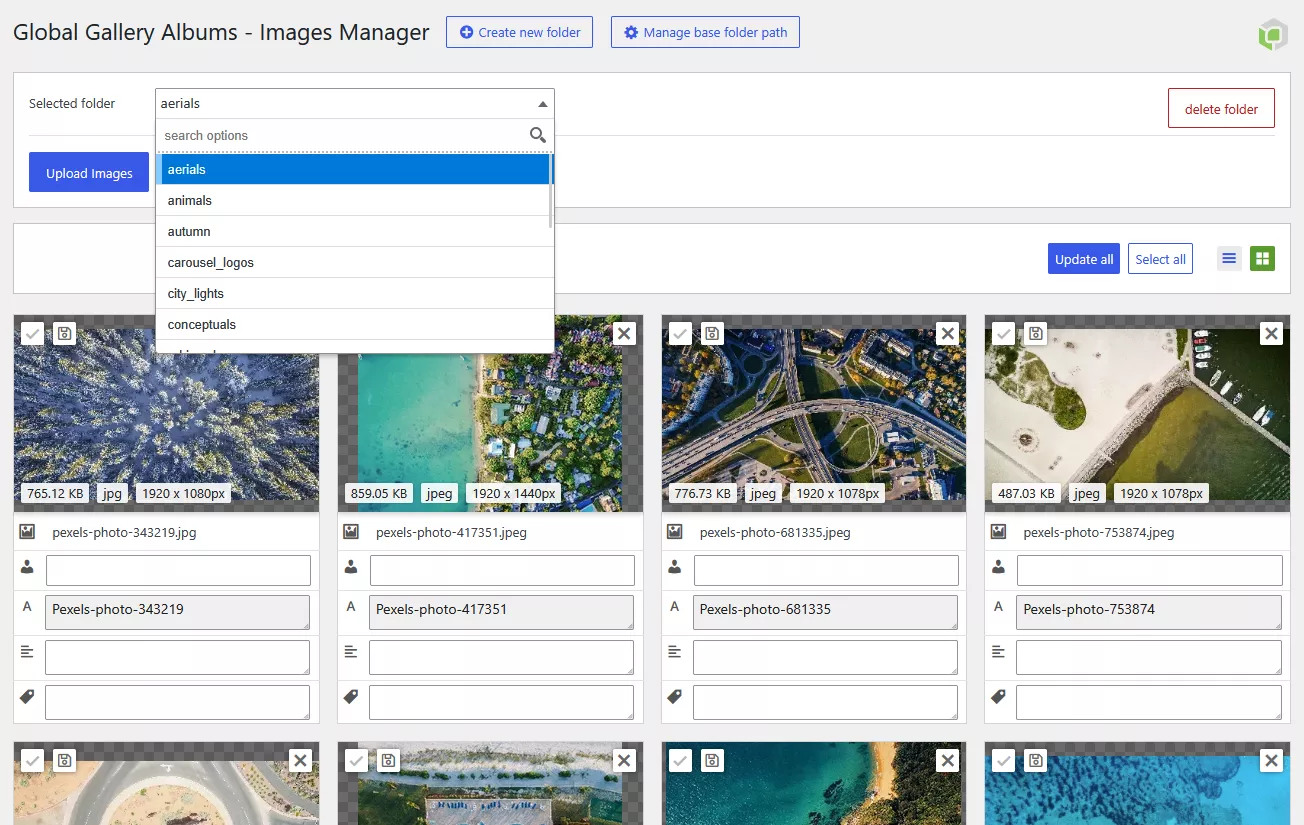
Step 4: check and edit photo data
Select a folder in the GG Albums Manager and every photo shows its file name, author, title, description and tags, read from the file. You can:
- Fix a single photo: edit its fields and click Update all
- Edit many at once: select them and use Bulk Options to set the same author, title or description, move them to another folder or remove them
Here's the part that matters most: your changes are written inside the files, as IPTC for JPG and as XMP for PNG and WebP. So the data travels with the photo: if you download it, move it or re-use it elsewhere, captions and credits are still there. AVIF files are read but not modified.
Step 5: create the gallery
- Go to Global Gallery → Add New Gallery, give it a title, and select Global Gallery Album in Main images source
- In Choose an album, pick the folder
- Select the photos, or click Select all, then Add to Gallery. Titles, descriptions, authors and tags are filled in from the metadata
- Sort them with drag and drop, add links if you need them, then click Publish
Want the gallery to follow the folder? Turn on Auto population?: every photo you upload by FTP appears in the gallery at the next cache refresh, from 15 minutes to one week, without opening WordPress. Set Max images high enough, since it's 20 by default.
Your Lightroom keywords become the image tags. Add filters="1" to the shortcode and visitors can filter the photos by keyword, as explained in WordPress gallery with filter.
Bonus: let Google find your photos
Captions are not only for visitors. Global Gallery builds an image XML sitemap, and galleries from albums are included with their title and caption:
- In the gallery, fill in Page URL for sitemap with the page where you publish it
- In Global Gallery → Settings, copy the address in Images XML sitemap location
- Submit it in Google Search Console, under Sitemaps
So the caption you wrote once in Lightroom describes the photo to visitors, to Google Images and, as the image title, to screen readers too.
Publish, protect and organize
Add the gallery with the Gallery Gutenberg block, the GG - Gallery Elementor widget, the Divi, WPBakery and Cornerstone modules, or the shortcode [ g-gallery gid="123"]. Album galleries get every Global Gallery feature:
- 4 layouts: Standard, Columnized, Masonry and PhotoString
- Lightbox showing title, caption and author of each photo
- Watermark on thumbnails and lightbox, without touching your originals: see how to watermark images in WordPress
- Galleries Collection: group many galleries in one portfolio page, filtered by category, for example Weddings, Portraits and Events
Frequently asked questions
Are album photos added to the Media Library?
No. They stay in their folder on your server and Global Gallery reads them from there. Your Media Library keeps only the images of your pages and posts.
Do I need to import photos after uploading them via FTP?
No. The folder is read live: as soon as the upload ends, its photos are in the GG Albums Manager and in the gallery builder.
Will hundreds of high-resolution photos slow down my pages?
No. Visitors never download your full-size files as thumbnails: Global Gallery creates optimized thumbnails once, stores them on the server and loads them as visitors scroll.
What if my photos are on Google Drive or Dropbox instead?
You can use them without uploading anything: see WordPress Google Drive gallery and WordPress Dropbox gallery. Keep in mind that IPTC captions, keywords and the image sitemap are a strength of albums on your own server.
Does it work with Capture One, Photo Mechanic or Adobe Bridge?
Yes. Global Gallery reads the standard IPTC and XMP fields, not a Lightroom-specific format, so any software that writes captions, credits and keywords into the exported files works the same way.