
Your photos already live in the cloud: uploading them again to WordPress is wasted time and wasted space.
Here's how to turn a Dropbox folder or an Amazon S3 bucket into a responsive WordPress gallery, kept in sync automatically.

Quick answer: WordPress only shows images from its own Media Library. With Global Gallery you:
- connect Dropbox with your account, or Amazon S3 with the bucket name and region
- pick a folder: each folder is an album
- choose the photos or let the gallery follow the folder automatically, then publish it with a block, a widget or a shortcode
Why show cloud photos instead of uploading them
- No double work: drop photos in a folder as you already do, and the website follows
- A lighter site: hundreds of high-resolution photos don't weigh on your hosting space and backups
- One place to manage them: clients, colleagues or your camera app can add photos to the folder without ever logging into WordPress
Dropbox or Amazon S3: which one fits you
| Dropbox | Amazon S3 | |
|---|---|---|
| Best for | Photographers, agencies, small teams | Large archives, developers, media companies |
| How you add photos | Desktop app, phone, web | AWS console, sync tools, scripts |
| Connection | Sign in with Dropbox once | Bucket name and region |
| Privacy of the files | Only photos in the gallery folders get a shared link | The bucket must be publicly readable |
Photos on Google Drive instead? There's a dedicated guide: how to create a WordPress Google Drive gallery. With Global Gallery every source works the same way, so you can mix them on the same site.
Part 1: create a Dropbox gallery
Step 1: prepare your Dropbox folders
- In the root of your Dropbox, create a folder named exactly
globalgallery - Inside it, create one subfolder per album, for example "Portraits 2026" or "Client Rossi"
- Put the photos directly inside each album folder. Supported formats are JPG, PNG, GIF, WebP and AVIF
You don't need to share anything by hand: Global Gallery creates the Dropbox shared links itself, only for the photos inside your globalgallery albums. File names become titles, so rename the ones you'll show with captions.
Step 2: connect Dropbox
- Go to Global Gallery → Add New Gallery, give it a title, and select Dropbox in Main images source
- Click manage connections, then add connection
- Fill in a Connection Name and a Dropbox Username, a label that identifies the account
- Click Get your Dropbox token, sign in to Dropbox and allow access. You land on a page of lcweb.it that shows your code in large type: copy it into Dropbox Token
- Click Submit
The connection renews itself in the background, so you connect once and every Dropbox gallery can reuse it. You can add more Dropbox accounts too, for example one per client.

Step 3: choose the photos
- Select your connection in Choose connection and click Connect
- In Choose a folder, pick the album: the list shows the subfolders of
globalgallery - Select the photos, or click Select all, then Add to Gallery. The search field helps in big folders
- Sort them with drag and drop, add titles, descriptions, tags and links, then click Publish
Try it with your own Dropbox: start your free 7-day trial. Connecting takes a couple of minutes, and you'll see your folders right away.
Part 2: create an Amazon S3 gallery
Step 1: prepare the bucket
Global Gallery reads S3 without access keys, using the bucket's public address. So the bucket must allow anyone to list its content and read its files. Use a bucket dedicated to public images, never one with private data:
- In the AWS console, open the bucket and in Permissions turn off Block public access for this bucket
- Add a bucket policy that allows public listing and reading. Replace
your-bucketwith the bucket name:{ "Version": "2012-10-17", "Statement": [ { "Effect": "Allow", "Principal": "*", "Action": ["s3:ListBucket"], "Resource": "arn:aws:s3:::your-bucket" }, { "Effect": "Allow", "Principal": "*", "Action": ["s3:GetObject"], "Resource": "arn:aws:s3:::your-bucket/*" } ] } - Create one folder per album at the top level of the bucket and upload the photos inside. Supported formats are JPG, PNG, GIF, WebP and AVIF
Step 2: connect the bucket
- In a new gallery, select Amazon AWS (S3) in Main images source
- Click manage connections, then add connection
- Fill in Connection Name, Bucket name and Bucket region, the region code shown in the AWS console, for example
eu-west-1 - Click Submit. Global Gallery checks the bucket right away: if it can't find any folder, check the policy and the region
Step 3: choose the photos
Select the connection, click Connect, pick the album in Choose Folder and add the photos exactly as in the Dropbox steps. Photos are loaded straight from the bucket, so you can put a CDN like CloudFront in front of it later without touching WordPress.
Keep galleries in sync automatically
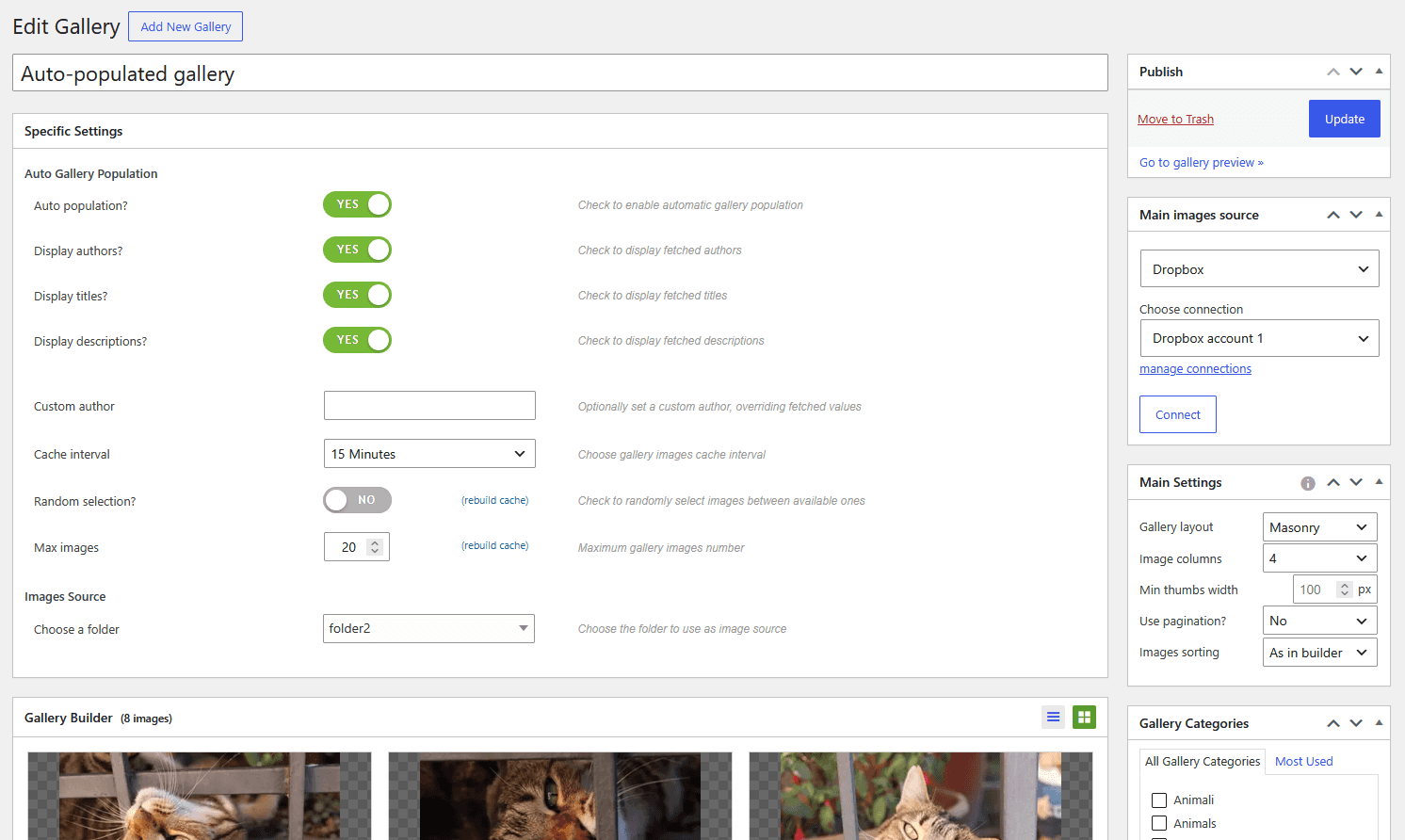
For both sources, turn on Auto population? in the gallery's Auto Gallery Population box, and the gallery shows what's in the folder:
- Cache interval: how often Global Gallery checks for new photos, from 15 minutes to one week, or never
- Max images: 20 by default, raise it for bigger folders
- Display titles?: shows file names as titles. With Custom author you can sign every photo with your name or studio
- Random selection?: shows a random subset at every cache refresh
Thumbnails are generated once and stored on your server, so the gallery stays fast even with hundreds of cloud photos.
Publish and style your gallery
Add the gallery with the Gallery Gutenberg block, the GG - Gallery Elementor widget, the Divi, WPBakery and Cornerstone modules, or the shortcode [ g-gallery gid="123"]. Cloud galleries get every Global Gallery feature:
- 4 layouts: Standard, Columnized, Masonry and PhotoString
- Sliders and carousels from the same gallery:
[ g-slider gid="123"]or[ g-carousel gid="123"] - Lightbox with full-size photos and social sharing
- Watermark without changing the files in your cloud: see how to watermark images in WordPress
- Galleries Collection with filters: group several galleries in one page, see WordPress gallery with filter
Frequently asked questions
Does Global Gallery make my whole Dropbox public?
No. It only reads the globalgallery folder and creates shared links for the photos in your albums. The rest of your Dropbox stays private.
Do I need AWS access keys for Amazon S3?
No. Global Gallery only needs the bucket name and region, because it reads the bucket's public listing. That's also why the bucket must be publicly readable: use one dedicated to the images you want to publish.
Can I use subfolders inside a gallery folder?
Each gallery shows the photos placed directly in its folder. For more levels, create more galleries and group them in a Galleries Collection with filters.
What happens if I delete a photo from the folder?
With auto population on, it disappears from the gallery at the next cache refresh. In manual mode, remove it from the gallery in the builder.
Can I use Dropbox, S3 and Google Drive on the same site?
Yes. Each gallery has its own source, and they all share the same layouts, lightbox and settings. You can even put galleries from different sources in the same Galleries Collection.