
A gallery with hundreds of photos and no way to sort them is a gallery nobody explores.
Here's how to add filter buttons to your WordPress galleries, group several galleries by category, and let visitors find what they want in one click.

Quick answer: the WordPress gallery block has no filters, and no way to group several galleries. With Global Gallery you have two ways, and you can combine them:
- Filter photos inside one gallery: tag your images and add
filters="1"to the gallery. Visitors get a button for each tag - Filter whole galleries: assign a category to each gallery and group them in a Galleries Collection. Visitors filter the gallery covers and open each gallery in place
- add search, pagination and shareable filtered URLs when the archive grows
Photos or galleries: which filter do you need?
Ask yourself what visitors are looking for:
- A type of photo inside one body of work, for example "kitchens", "bathrooms", "outdoor" in a builder's portfolio: you need tag filters on a single gallery
- A whole gallery, for example one wedding among fifty, one event per year, one project per client: you need a Galleries Collection, with the galleries filtered by category
Big sites often use both: a Galleries Collection to pick the gallery, then tags inside each gallery.
Ways to build a filterable gallery, compared
| Filter photos | Filter whole galleries | Effort | |
|---|---|---|---|
| WordPress gallery block | No | No | One page per gallery, linked by hand |
| Page builder "filterable gallery" widgets | Yes | No | Photos rebuilt inside each widget |
| Gallery plugins with paid add-ons | Often an extra add-on | Often an extra add-on | Several add-ons to buy and update |
| Global Gallery | Yes, by tag | Yes, Galleries Collection by category | Everything included |
Comparing gallery plugins? See Global Gallery side by side with Envira Gallery, NextGEN Gallery and Imagely.
Method 1: filter photos by tag
- Go to Global Gallery → Add New Gallery, choose the images source (Media Library, Google Drive, Dropbox and more) and add your photos
- In the Gallery Builder, write the tags of each photo, for example "kitchen" or "outdoor". For many photos at once, select them and use Bulk Options → Set tags
- Publish the gallery
- Add it to your page with filters enabled: in the Gutenberg block or Elementor widget turn on the filters option, or use the shortcode
[ g-gallery gid="123" filters="1"]
Above the gallery visitors now see an "All" button plus one button per tag. Clicking a tag shows only the matching photos, without reloading the page.
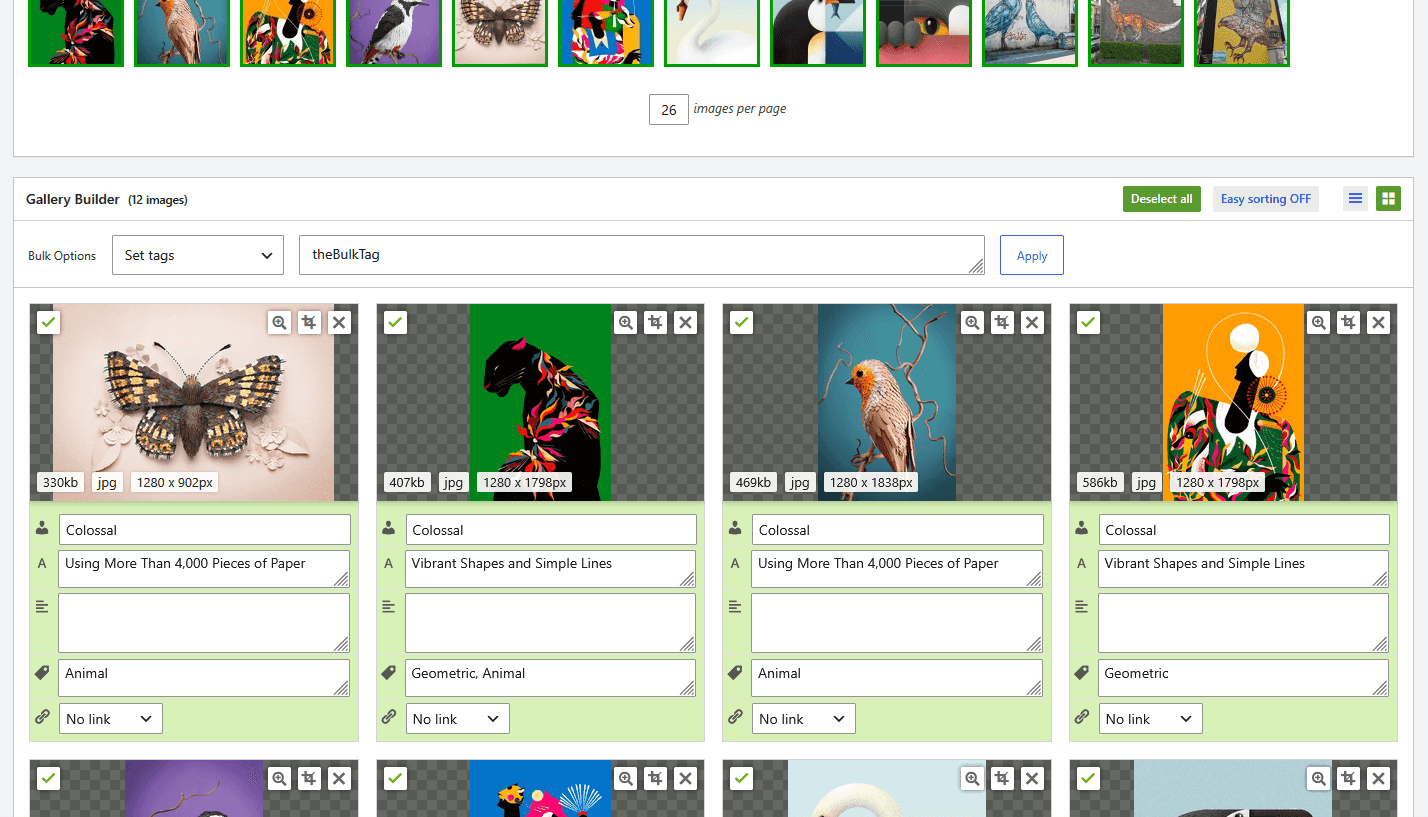
Fine-tune the tag filters in Global Gallery → Settings → Main Options → Tags and collection filters:
- Sort tags by: choose the order of the buttons
- Show matched images count?: shows how many photos each tag has
- Discard tags matching less than this images number: hides tags used on just one or two photos, so the filter bar stays clean
- Tags - custom "All" filter's text: rename "All", for example "Everything" or a translation
Try it on your own photos: start your free 7-day trial and build a filterable gallery in a few minutes.
Method 2: filter galleries with a Galleries Collection
What is a Galleries Collection? It's a set of existing galleries shown together in one page. Each gallery appears as a cover, using its first photo or an image you choose, with its title and an optional description. Visitors filter the covers by Gallery Categories, click one, and the gallery opens right there, with a "Back to collection" button to return to the covers.
It's the ideal way to publish many galleries without creating a page for each one: one page, every gallery, and filters to find the right one.
Step 1: create categories and assign them
- Go to Global Gallery → Gallery Categories and create your categories, for example "Weddings", "Portraits", "Events"
- Open each gallery and tick its category, then update it. A gallery can have more than one category
Step 2: build the collection
- Go to Global Gallery → Collections, write a name in Add Collection and click Add
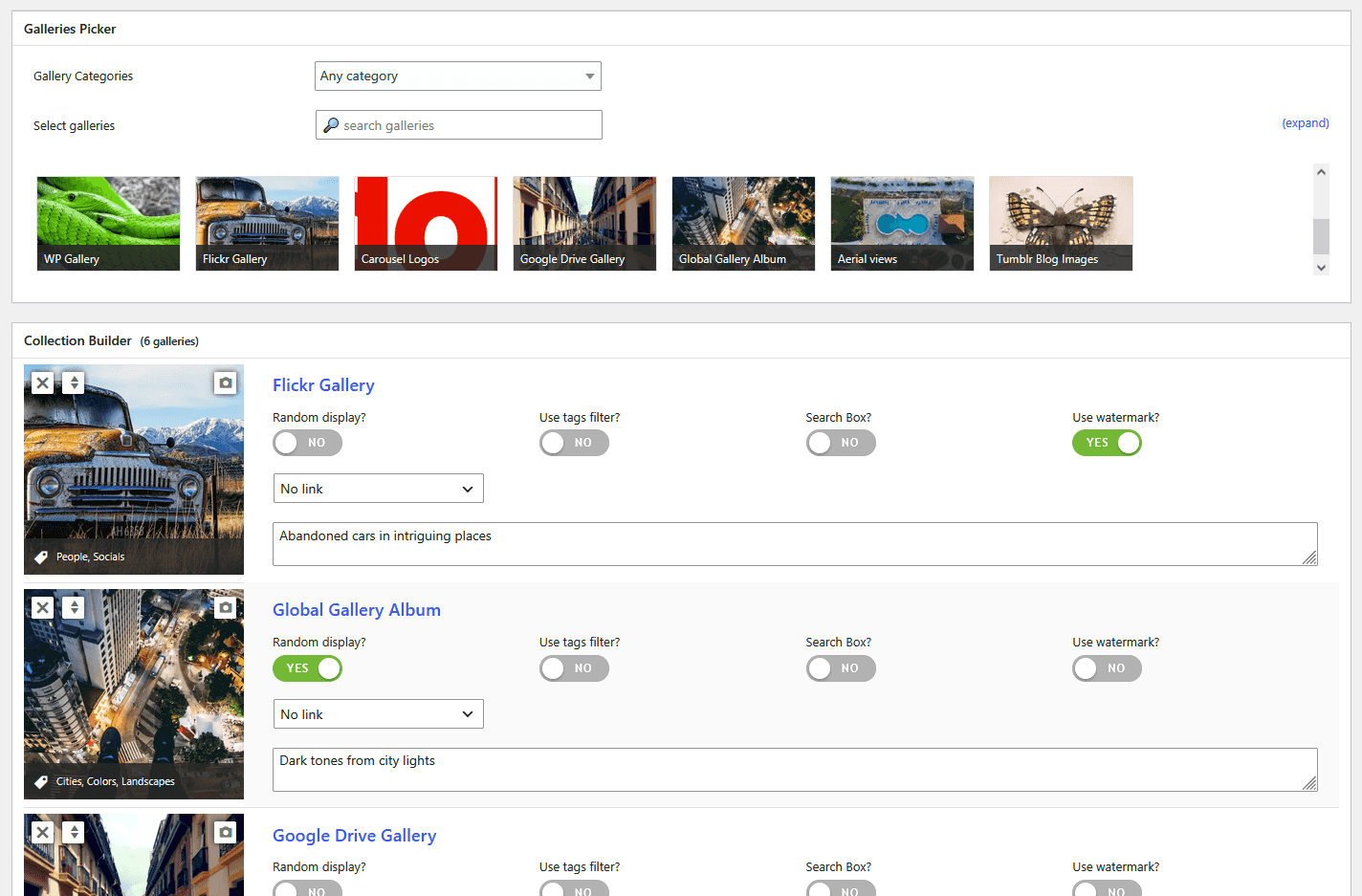
- Select the collection: in the Galleries Picker filter by category or search, and click the galleries to add them
- In the Collection Builder, drag the galleries in the order you want. For each one you can set:
- a custom main image, if the first photo isn't the best cover
- a description shown with the cover. The
%IMG-NUM%placeholder prints the number of photos - Use tags filter? and Search Box?, to have tag filters and search inside that gallery once opened
- Random display? and Use watermark?
- a link (To a page or Custom link), if a cover should lead to a dedicated page instead of opening the gallery in place
- Click Save Collection, then Preview to check it
Step 3: publish it with filters
Use the Galleries Collection Gutenberg block, the GG - Collection Elementor widget, or the shortcode:
[ g-collection cid="5" filter="1"]Two useful extras:
def_filter="12"opens the collection already filtered on category 12, for example to show "Weddings" first on the weddings pagehide_all_filter="1"removes the "All" button, so a category is always selected
In Settings → Main Options → Collection Settings you can rename the "Back to collection" button, keep it visible while scrolling, and show the title of the opened gallery.
Style the filters
- Buttons or text: filters are buttons by default. With Use textual filters style? they become a text list with a separator of your choice
- Mobile: Use dropdown on mobile mode? turns the filters into a dropdown on phones, so a long list doesn't take half the screen
- Alignment and colors: Filters alignment in the same section, and the Filters section in the Styling tab
- Layout: the photos keep the gallery layout you chose, Standard, Columnized, Masonry or PhotoString, and the filter rearranges them smoothly
Search, pagination and shareable links
When the archive grows, filters alone aren't enough:
- Search:
search="1"on a gallery adds a search box that looks into titles, descriptions, authors and tags - Pagination: split long galleries into pages, with standard or numbered buttons, dots, or infinite scroll (on click or automatic), from Pagination Settings or per gallery. Galleries Collections support pagination too
- Deeplinking: the selected filter, search and page go into the URL. A visitor can share "your-site.com/portfolio/" already filtered on "Kitchens", and it opens exactly like that. Enable it in Settings → Main Options → Deeplinking
Real-world examples
- Wedding and event photographers: a Galleries Collection with one gallery per event, filtered by "Weddings", "Engagements", "Corporate"
- Builders, architects and interior designers: one portfolio gallery with tags like "kitchens", "bathrooms", "renovations"
- Schools and associations: one gallery per school year or activity, grouped in a Galleries Collection, with search to find a specific event
- Shops and manufacturers: product photos filtered by line or material, linked to the product pages
- Travel and hospitality: rooms, restaurant, surroundings and events, each as a filter
Frequently asked questions
Does the filter reload the page?
No. Filtering happens instantly in the page. With deeplinking enabled the URL updates too, so the filtered view can be bookmarked and shared.
What's the difference between tags and gallery categories?
Tags belong to single photos and filter the photos inside one gallery. Gallery Categories belong to whole galleries and filter the gallery covers in a Galleries Collection.
Can a photo or a gallery be in more than one filter?
Yes. A photo can have several tags and a gallery several categories: it appears under each of them.
Do filters work with Google Drive or Dropbox galleries?
Yes. A Galleries Collection works with galleries from any source, and in manual mode you can tag photos from any source in the Gallery Builder. See how to create a WordPress Google Drive gallery.
Are the filters mobile friendly?
Yes. Galleries are responsive, and you can switch the filter buttons to a dropdown on phones with one option.