
Your photos are already in Google Drive: there's no reason to upload them twice.
Here's how to turn a Drive folder into a responsive WordPress gallery that updates itself when you add new photos.

Quick answer: WordPress can't read Google Drive on its own, and an embedded Drive folder looks like a file list, not a gallery. With Global Gallery you:
- connect your Google account once, with read-only access
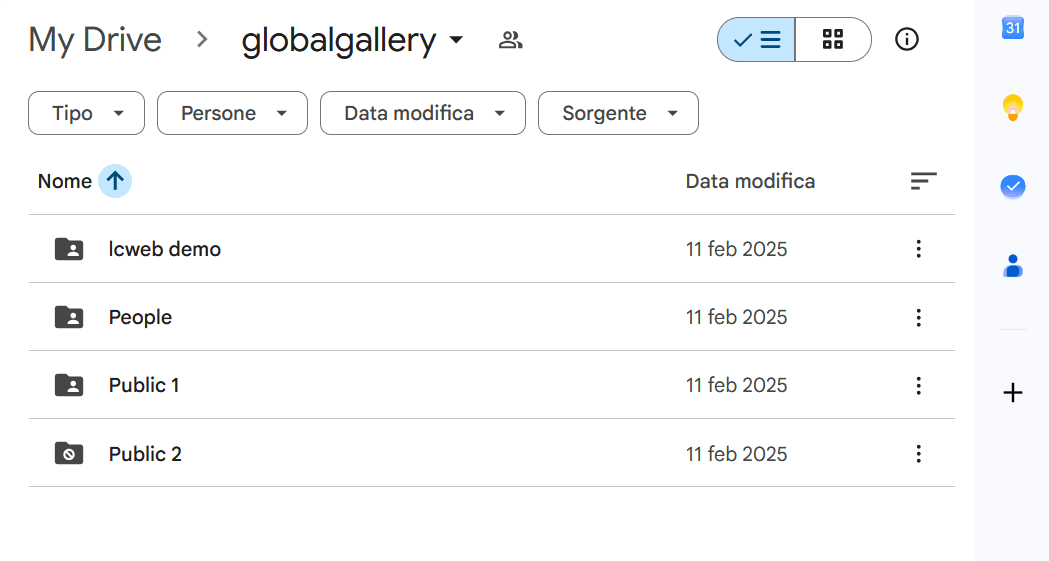
- put your photos in subfolders of a "globalgallery" folder in Drive: each subfolder is an album
- create a gallery, pick the album and enable auto population: new photos added to Drive appear on the site by themselves
Why use Google Drive as a gallery source
For many people Google Drive is where photos already live: the phone backs them up, clients share folders, the team drops event shots in a shared drive. Re-uploading everything to the WordPress Media Library means:
- double work every time there are new photos
- two copies to keep aligned, and the site always a step behind
- a heavier site: hundreds of full-size images on your hosting and in your backups
Using Drive as the source solves all three: you manage photos where you already do, and the website follows.
4 ways to show Drive photos in WordPress, compared
| Looks like a gallery | Updates by itself | Other sources | |
|---|---|---|---|
| Embedded Drive folder (iframe) | No, it's a file list | Yes | No |
| Download and re-upload to the Media Library | Yes | No, manual every time | No |
| Drive-only gallery plugins | Yes, with basic layouts | Yes | No, Drive only |
| Global Gallery | Yes, 4 layouts + lightbox | Yes, with cache | Dropbox, Amazon S3, Flickr, Media Library and more |
The last column matters more than it seems. Today it's Drive, tomorrow a client sends a Dropbox link or you want a gallery from your blog posts: with Global Gallery every gallery looks and works the same, whatever the source. If you're coming from another gallery plugin, see how it compares with NextGEN Gallery and Envira Gallery.
What you need
- WordPress with PHP 8.0.2 or higher: the Google Drive source is required by Google's SDK and doesn't appear on older PHP versions
- a Google account with the photos in Drive
- Global Gallery, which you can try free for 7 days
Step 1: prepare your Drive folders
- In the root of your Google Drive ("My Drive"), create a folder named exactly
globalgallery - Inside it, create one subfolder per album, for example "Wedding Smith", "Kitchen projects", "Team 2026"
- Put the photos directly inside each album folder. Supported formats are JPG, PNG, GIF, WebP and AVIF
- Share the
globalgalleryfolder: in General access choose Anyone with the link, so visitors can load the images
Two tips that save time later:
- File names become titles. "IMG_4032.jpg" isn't a great caption, so rename the photos you'll show with titles
- Drive descriptions become image descriptions. Add them in Drive (file details) and they'll show up in the gallery
Step 2: connect Google Drive
- In WordPress go to Global Gallery → Add New Gallery and give it a title
- In the Main images source box, select Google Drive
- Click manage connections, then add connection
- Fill in a Connection Name (just a label for you) and a Google Username (your Google account name, used to identify the connection)
- Click Get your Google Drive token, sign in with Google and allow access. You land on a page of lcweb.it that shows your code in large type: copy it into the Google Token field
- Click Submit
Global Gallery asks Google for read-only access to file information: it can list your folders and photos, and it can't edit or delete anything in your Drive. Google may show a warning about the app verification while you connect: Global Gallery itself tells you to proceed. You connect once, and every future Drive gallery reuses the same connection.
Step 3: create the gallery
- Choose your connection in Choose connection and click Connect
- Under Images Source, pick the album in Choose an album: the list shows the subfolders of
globalgallery - Select the photos you want, or use Select all, then click Add to Gallery. Use the search field to find photos by name in large folders
- In the Gallery Builder, drag photos to sort them, and set title, description, tags and link for each one. The bulk options do it for many photos at once
- Click Publish
This is the "manual" mode: you decide which photos are shown, in which order and with which texts.
See it before you buy: start your free 7-day trial and connect your own Drive in a couple of minutes. If it's not what you need, you've lost nothing.
Step 4: keep it in sync automatically
If you'd rather not touch WordPress when photos change, turn on Auto population? in the gallery's Auto Gallery Population box. The gallery then shows whatever is in the Drive folder:
- Cache interval: how often Global Gallery checks Drive for changes, from 15 minutes to one week, or never
- Max images: how many photos to show. It's 20 by default, so raise it for big folders
- Display titles / descriptions / authors?: what to show from Drive's data. With Custom author you can set one name for all photos, for example your studio's
- Random selection?: shows a random subset, nice for "best of" galleries on the homepage
The cache is what keeps the site fast: visitors don't wait for Google on every page view, and thumbnails are generated once and stored on your server.
Step 5: publish it
Add the gallery to any page:
- Gutenberg: add the Gallery block from the Global Gallery category
- Elementor: use the GG - Gallery widget. Divi, WPBakery and Cornerstone have their own modules too
- Shortcode:
[ g-gallery gid="123"], where 123 is the gallery ID
Use Go to gallery preview in the gallery editor to check it before placing it on a page.
Layouts, lightbox and watermark
A Drive gallery gets every Global Gallery feature, exactly like a Media Library gallery:
- 4 layouts: Standard, Columnized, Masonry and PhotoString (justified rows). See how to create a WordPress masonry gallery
- Lightbox with full-size images, captions and social sharing
- Watermark: add
watermark="1"to the shortcode to brand every photo. Your Drive files stay untouched: Global Gallery creates watermarked copies on your server. Full guide: how to watermark images in WordPress - Tag filters, search and pagination for large galleries
- Right click protection on gallery images, from the settings
- Collections: group several Drive albums in one page, with filters to switch between them. See WordPress gallery with filter
Photos in Dropbox or Amazon S3 too? The same logic works with those sources: connect once, pick a folder, publish. Here's the WordPress Dropbox and Amazon S3 gallery guide.
Can Global Gallery change or delete files in my Google Drive?
No. Every file in the Media Library has a public URL that works for anyone who has it, even if the page linking it is private. To make files truly private you need a plugin that stores them outside the public uploads and checks permissions before every download.
Do I need to re-upload my photos to WordPress?
No. Photos stay in Drive. Global Gallery only stores the thumbnails it creates on your server, to keep the gallery fast.
What happens when I add photos to the Drive folder?
With auto population on, they appear on the site at the next cache refresh, which you choose from 15 minutes to one week. In manual mode, you add them to the gallery yourself, choosing which ones to show.
Can I use more than one Google account?
Yes. Each Google account is a separate connection, and every gallery can use a different one. That's handy for agencies managing photos for several clients.
Why don't I see Google Drive in the sources list?
Google's SDK requires PHP 8.0.2 or higher. On older PHP versions the Google Drive source is hidden: ask your host to update PHP, which is also good for speed and security.